Client Vault 20.37 is a complete redesign of the admin, built from your feedback. A navigation bar, a clear home on every page, fewer clicks for every task, and your brand everywhere you and your clients look.
For months, your feedback in the community and to support has pointed the same way. Client Vault is complete. Sometimes too complete. The interface was rich, and not always easy to get to grips with.
I listened. Version 20.37 is not just another update: it is a redesign of the entire admin. I went back over every screen, one by one, with a single question in mind: how can I save time for you and for your clients?
And I removed nothing. Every feature, every setting, every option is still there. Now they are finally in the right place.
Client Vault 20.37 at a glance
- A complete redesign: a navigation bar at the top of every screen and a clear home on every page, in all 17 languages.
- The look and feel of FunnelCart and Booking Leads: the same layout, the same warmth, the same habits from one tool to the next.
- Fewer clicks: one click takes you to the right message, the right document or the right appointment, for the right client.
- A dashboard that gets things done: every number opens up, document requests are tracked one by one, and the Actions menu creates in one click.
- Client files that sum it all up: where your client stands, what they haven’t seen yet, what is overdue.
- Journeys you can steer at a glance: a health score, the participants to follow up with and the progress of every step.
- Tidy settings and security: a home that checks the essentials, collapsible blocks, and Security in four pages.
- A redesigned agency vault: the same clear home, in the colors of Agency mode.
- Your brand everywhere: all the way to the Plugins page, updates, the license, emails and your clients’ calendars.
A complete redesign, with the look and feel of FunnelCart and Booking Leads
If you already use FunnelCart or Booking Leads, you will feel right at home. Client Vault adopts the same layout: a bar at the top, home pages that tell you what to do, clear dialogs. A warmer interface, and above all a simpler one.
A navigation bar, always within reach
A bar stays at the top of every screen: Home, Clients, Journey, Announcements and Settings. On the right, the Personal / Agency switch. You change pages in one click, wherever you are.
Agency mode has its own color, a purple you recognize instantly. The agency vault, its announcements and its settings each have their own home too.
The new interface follows the language of your admin, in all 17 Client Vault languages. Dates on the security screens also follow your language’s format.
A home on every page, the essentials first
Headers open in simple view: only what matters. A “Full view” button, always in the same spot, shows everything else. The dashboard, clients, journeys, announcements and settings all share the same header design. You know where to look, on every page.
Clear dialogs, no more browser pop-ups
Every confirmation request now goes through a redesigned Client Vault dialog. Its badge takes on the color of the action: red with a trash can for a deletion, green with a check mark for an approval. The question is written as the title, the buttons are wide, and the Esc key cancels.
The activity log describes every action in one clear sentence. No more cryptic codes.
Fewer clicks, for every task
This is the heart of this version. Every shortcut saves you from hunting for the right menu, the right client, then the right tab.
- A client message: one click from the dashboard opens the client’s file on their messages, with the message open.
- A discussion: the file opens on the comments, with the discussion outlined in orange and its Reply button.
- An uploaded document: you land on the client’s documents, with the file highlighted.
- A document request: for one client, their file opens directly. For several clients, the list of those clients appears, with what is overdue and how far along they are.
- A calendar appointment: one click opens its journey on the Calendar tab, with the event centered and outlined.
- A dashboard number: each bubble opens the matching list, for example your blocked clients.
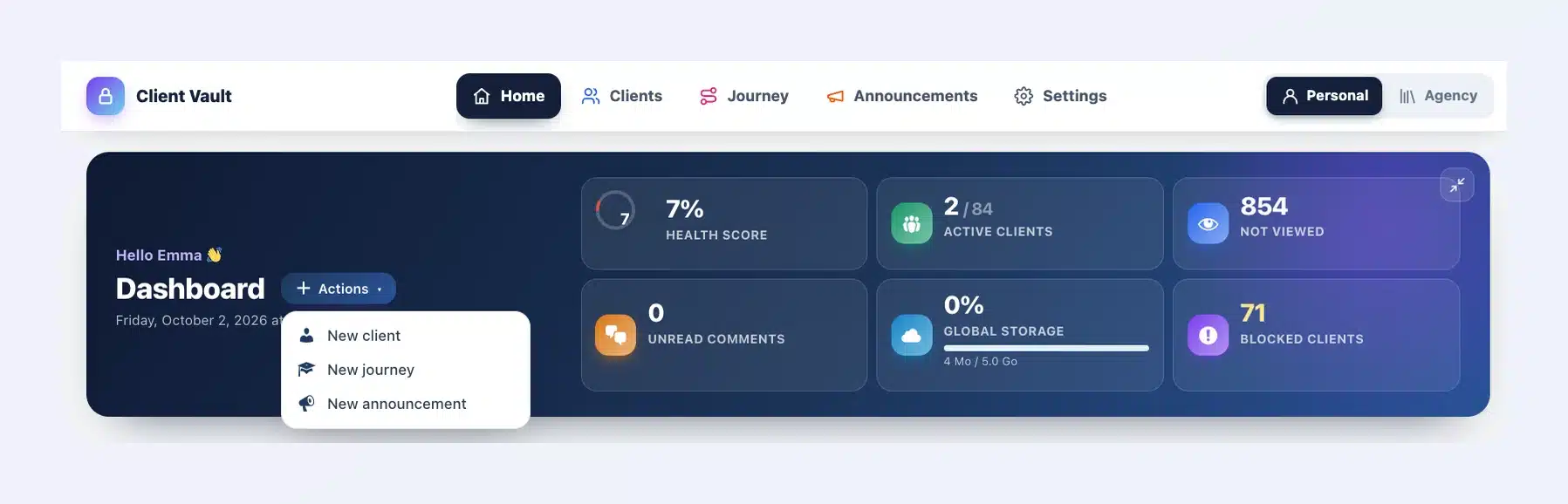
- Create: the Actions menu opens the form for a new client, a new journey or a new announcement directly.
- Save your settings: you stay on the same section, with the same blocks open. No need to find your place again.
- Your encryption key: the “Download the key” link takes you straight to the right Security page.
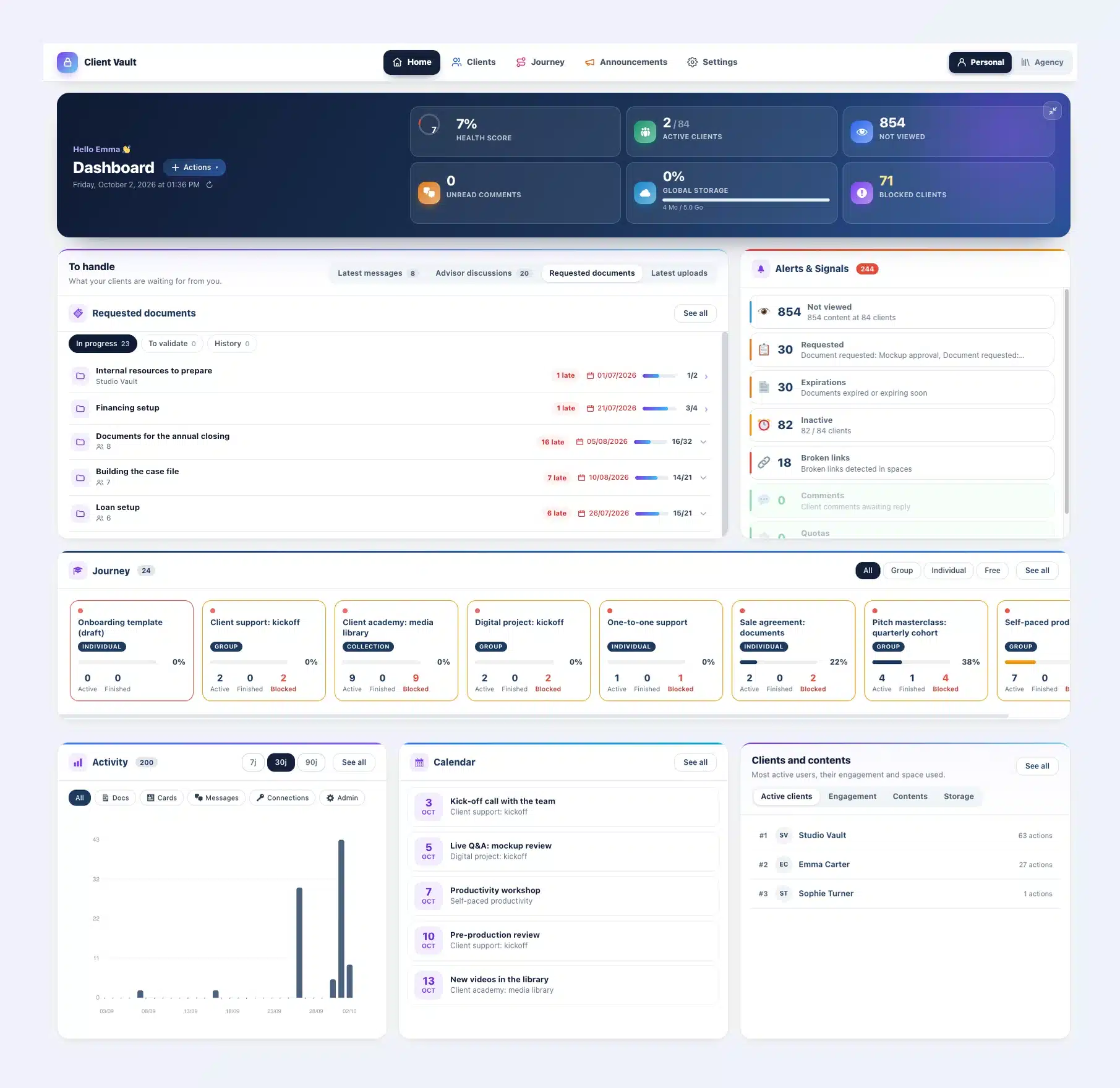
The dashboard: everything waiting for you, in one place
In simple view, everything fits on one line: the title, the Actions button and six number bubbles, all clickable. In full view, Client Vault greets you by your first name, alongside your indicators.
Below, three neatly arranged rows: “To handle” and the alerts, then your journeys across the full width, then activity, the calendar and “Clients and contents” side by side.
- To handle brings together four tabs: Latest messages, Advisor discussions, Requested documents and Latest uploads. Each row stands out on hover and opens the exact spot in the client’s file.
- Requested documents: each request is tracked like a case. Its name, the number of clients, what is overdue, the due date and a progress bar, for example 16 of 32 items received.
- Latest messages: identical messages fit on a single line, with their count. Latest uploads are sorted from newest to oldest.
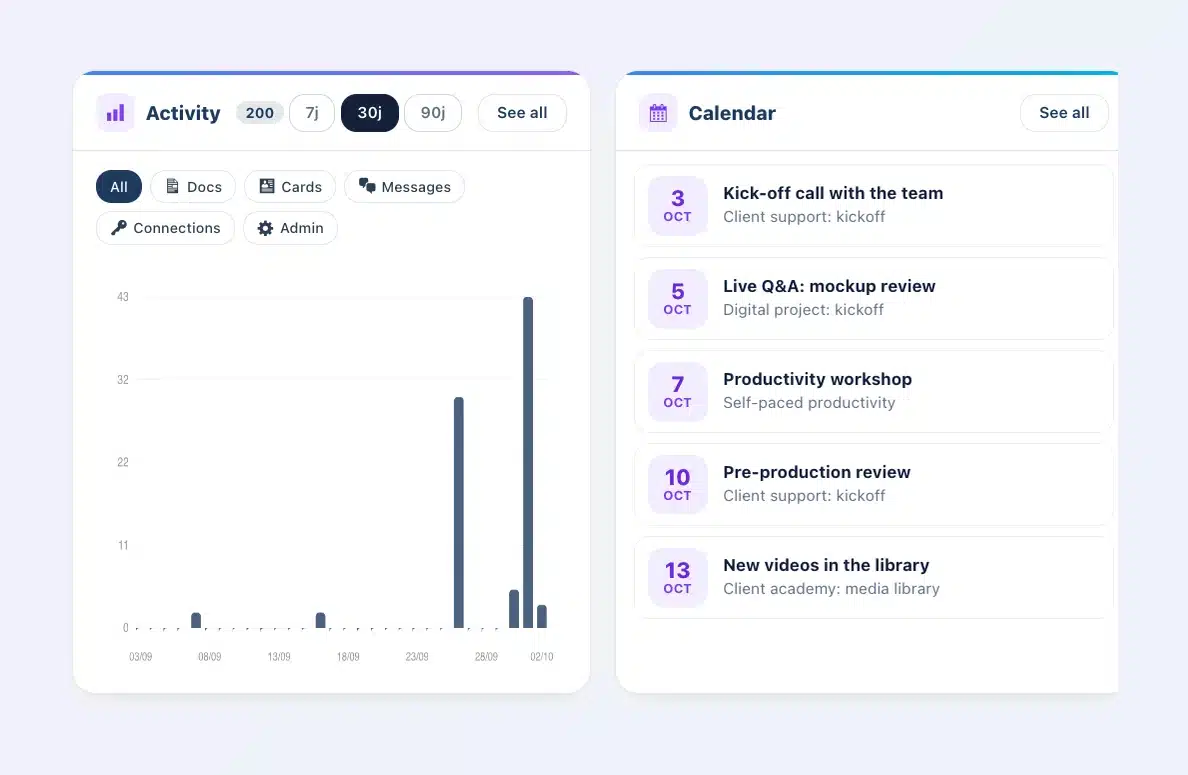
- Calendar: every event is clickable, from the block as well as from “See all”.
- Clients and contents: four tabs, Active clients, Engagement, Contents and Storage. The new Engagement tab shows your clients’ logins, actions, comments and uploads over the last 30 days.
- Alerts & Signals: unviewed content, requested documents, expirations, inactive clients, broken links, comments and quotas, in a single block.
Your clients feel the difference quickly. An uploaded document no longer goes unanswered, an overdue request shows up right away, and you follow up at the right moment.
Your clients: a faster list, a file that sums it all up
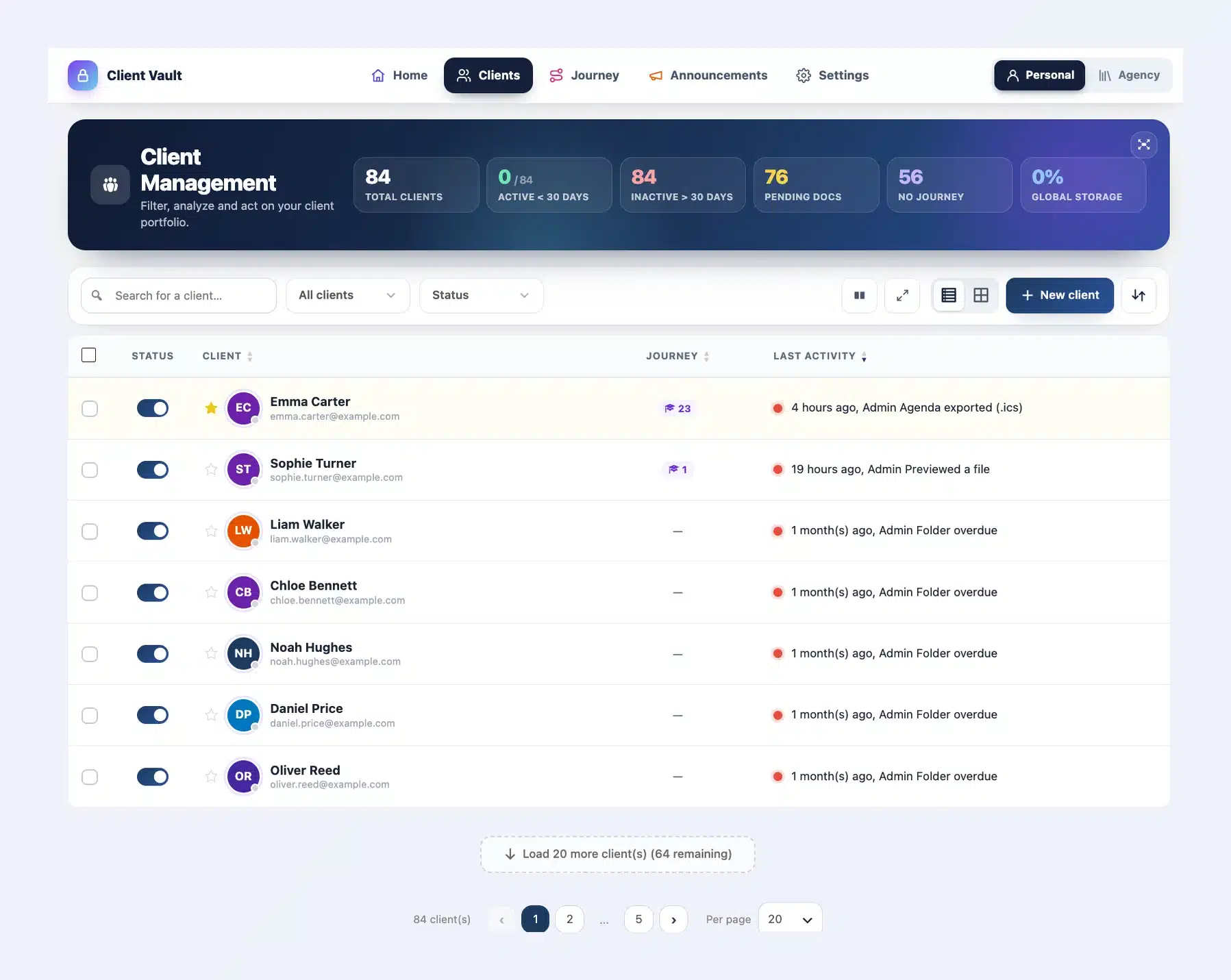
The client list opens with a compact header and six colored counters: total, active, inactive, pending documents, clients without a journey, storage. Each one still works as a filter. A button switches to the detailed view, and Client Vault remembers your choice.
You choose to show 10, 20, 25, 50 or 100 clients per page. The “Load more” button adds the next ones below the list, without changing pages. The filter is simply called “Status”, and Import / Export becomes a discreet button next to “New client”.
The client file, finally easy to read
Each file is organized into six sections that stay visible as you scroll: Home, Journey, Folders, Contents, Exchanges and Activity Log. Search and the Add button sit on the same line. And the file opens on its home.
- Where is your client at? How long they have been a client, how many items you have shared, and their activity over the last 30 days or 12 weeks.
- To view: one tile per type, with a big number. The documents, cards and links they haven’t opened yet. One click opens the right section.
- Vault content: one line per section, with the number of unviewed items.
- Latest actions: what they did recently, with a link to the full log.
- Their journeys: each with its progress, and a link to manage them.
- Deadlines and approvals: overdue folders in red, upcoming deadlines and what is waiting for your approval.
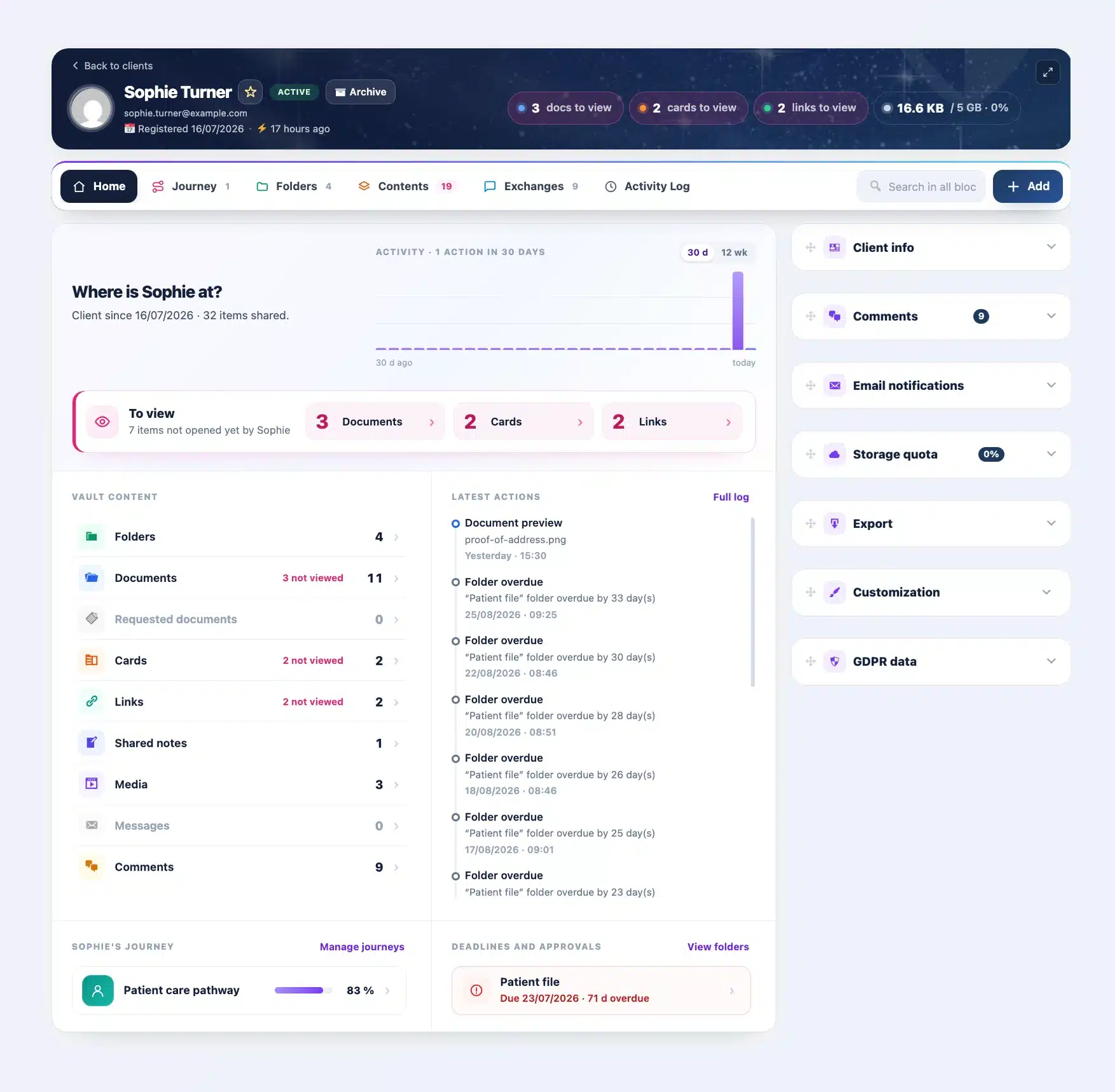
Before a call, a quick look is all it takes. You know what your client has seen, what is missing and what comes next. They feel looked after, and they are.
Your journeys, steered at a glance
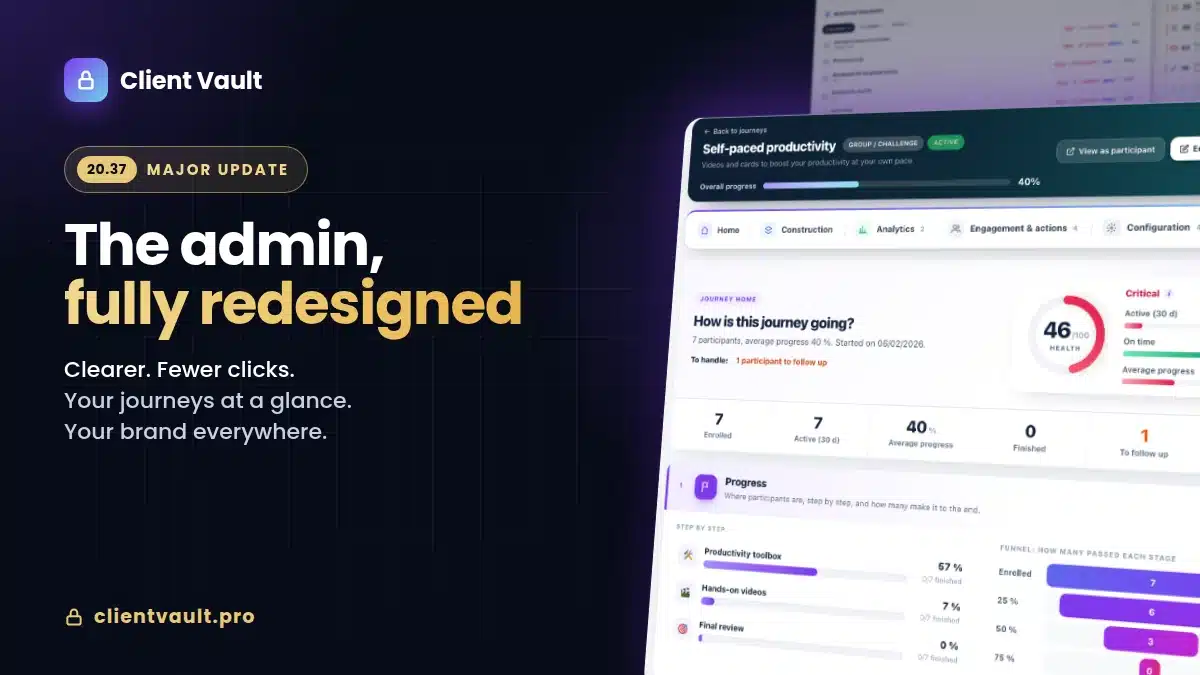
Every journey now opens on its home. Everything you need to know fits on one screen.
- A health score out of 100, in a ring that changes color. It sums up three measures: participants active over the last 30 days, those who are on schedule, and average progress.
- To handle: the number of participants to follow up with and the pending approvals, right below the title.
- Six key numbers: enrolled, active, average progress, completed, to follow up and actions over the last 30 days.
- Progress: one bar per step, with the number of participants who have completed it, and a funnel showing how many pass 25, 50, 75 and 100%.
- Engagement: the curve for the last 30 days and the latest actions.
- Participants: those to follow up with first, stuck for more than 7 days along with the step where they stopped, and the most advanced.
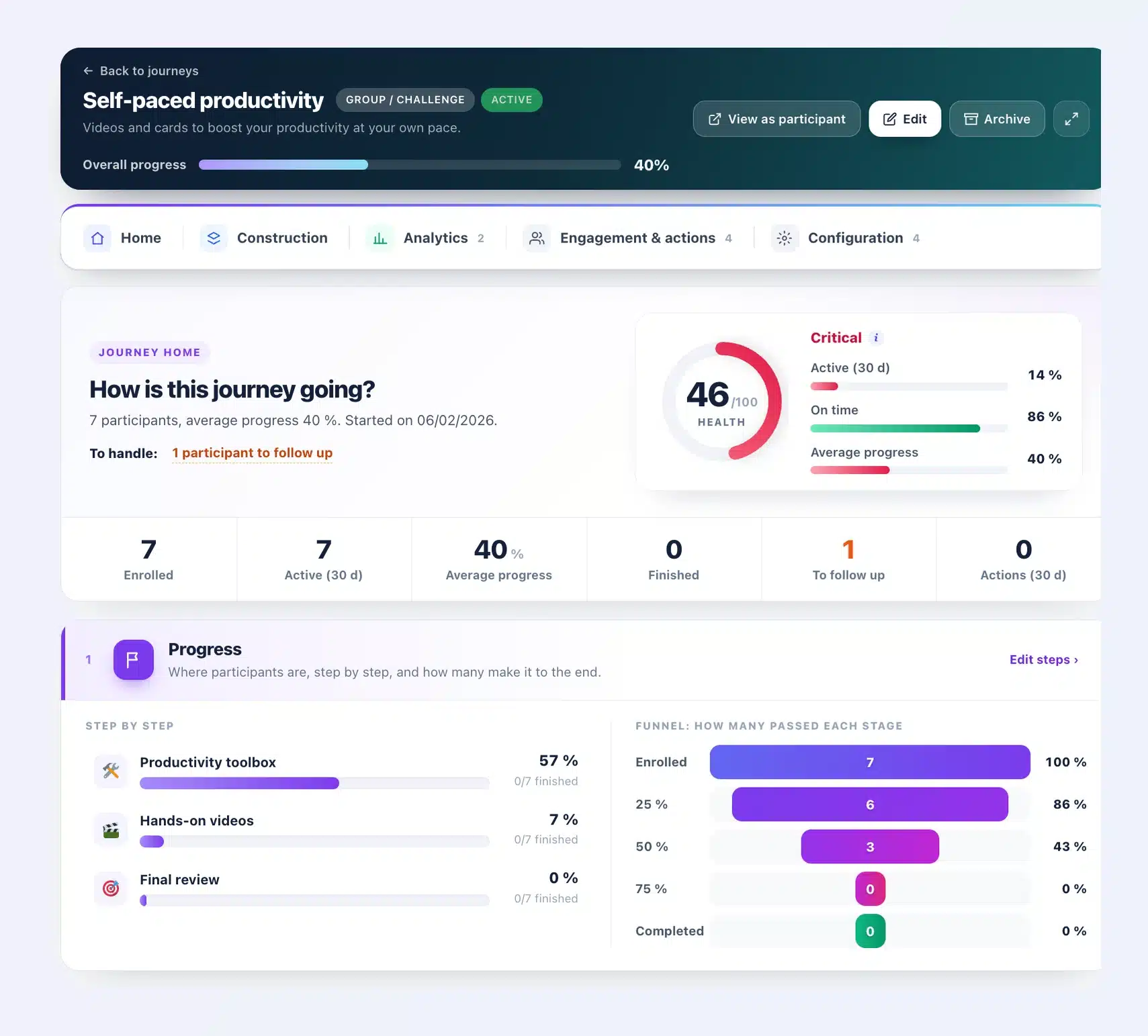
An individual journey shows you where your client is at, step by step, with the sub-steps done and those remaining. A collection shows you its content, its views and the most viewed items.
Build and manage, more simply
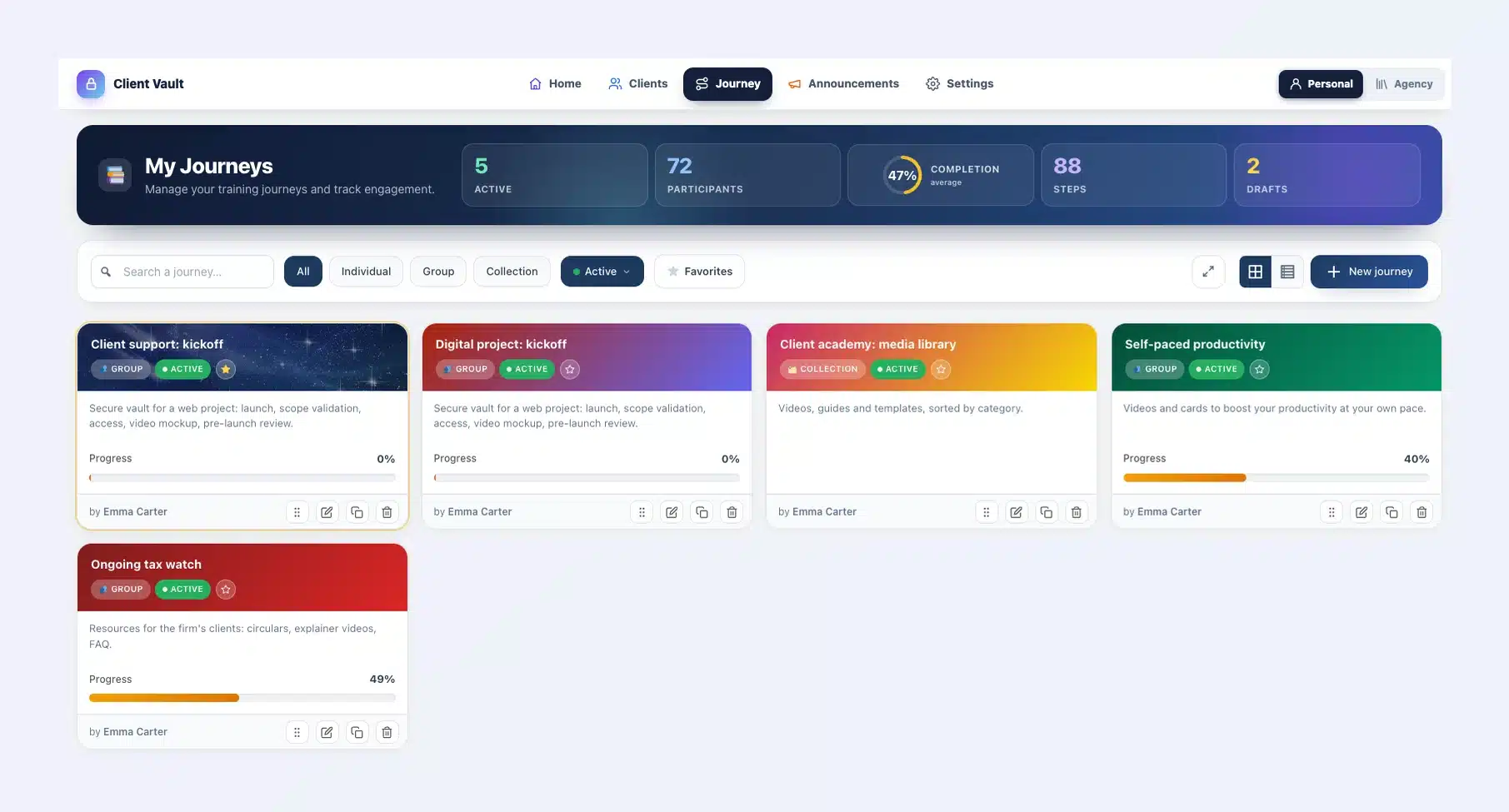
- The “My journeys” list has more compact cards, with progress right below the description and a more visible gauge. Adding one to your favorites shows a clear message.
- The header places “Back to journeys” at the top left, just like “Back to clients”.
- The menu fits on one line: Home, Construction, Analytics, Engagement & Actions, Configuration.
- Construction is shown in two columns: your steps on the left, the selected step on the right. “Add a step” becomes a large button, “Import from LMS” a small button beside it.
- The forms for replays, events and announcements open in the foreground, with the rest of the page dimmed.
- Filters are aligned everywhere, and recent activity matches the participant tracking.
You see who is falling behind before they give up. You follow up with the right person, on the right step. You help them go all the way.
Announcements that are more pleasant to write
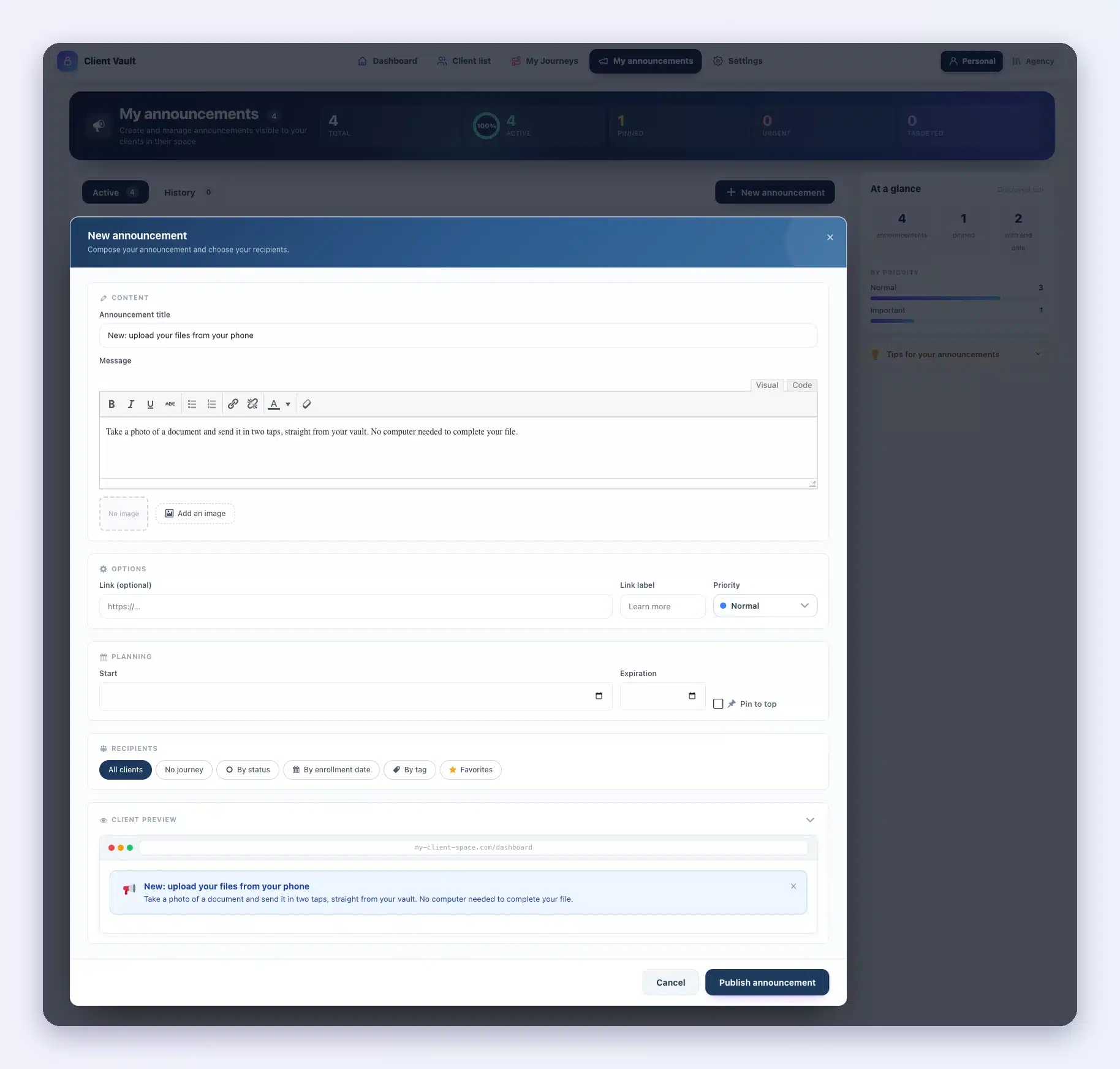
Announcements get the same header as journeys, with their counters and the share of active announcements. The “New announcement” button sits right next to the Active and History tabs.
One click on “New announcement” and the form comes to the foreground. You write your message, choose your recipients (all clients, by status, by tag or your favorites), and the preview shows you the announcement exactly as your clients will see it.
While you write, the form stays sharp and the rest of the page fades into the background. You stay focused. Priority is clearer, the “Pin to top” box lines up with the dates, and tips appear as easy-to-read cards.
The agency vault, redesigned too
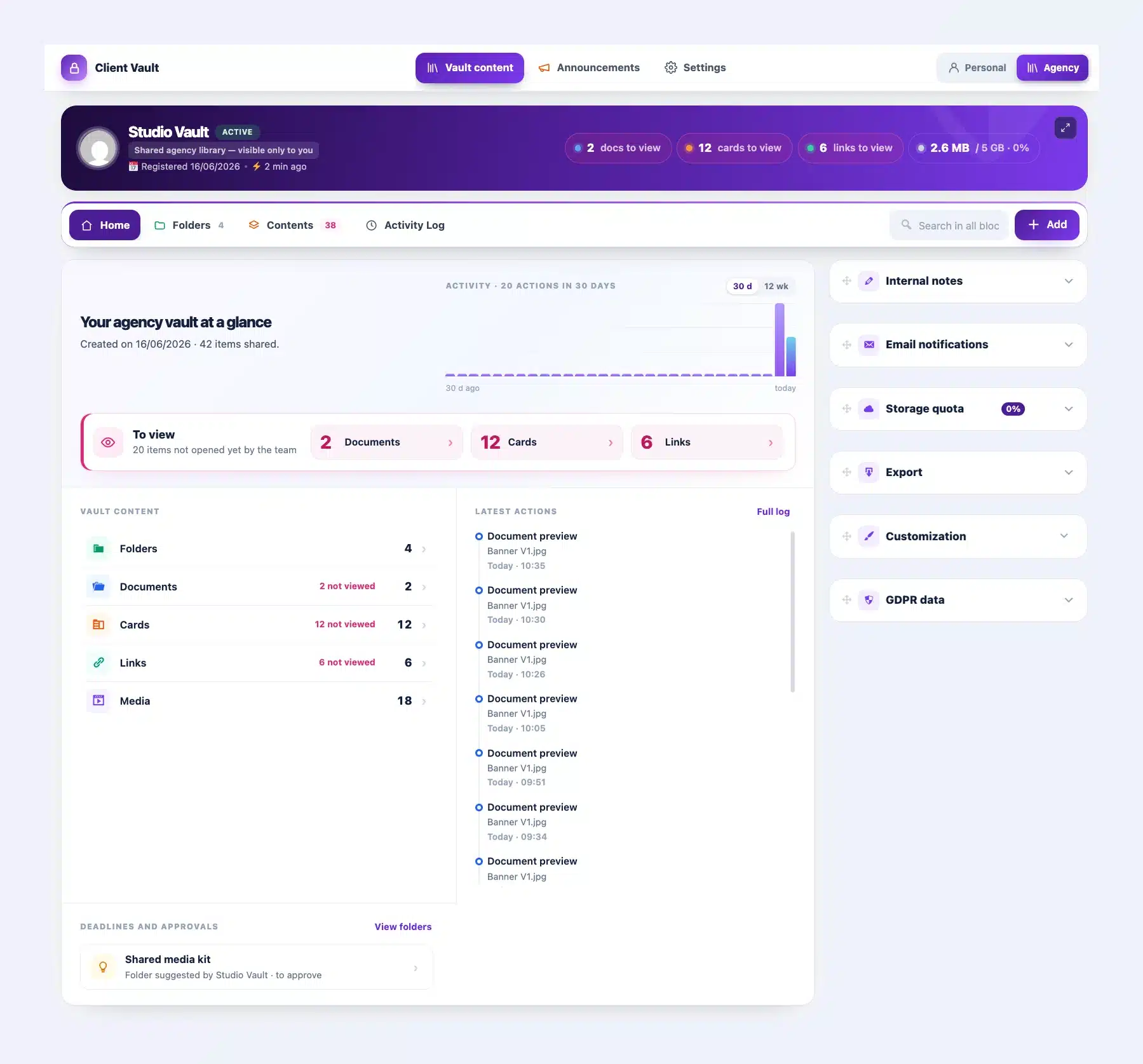
The agency vault is the heart of Agency mode. It brings together everything you share with your team: folders, documents, cards, links and media. One click on “Agency”, at the top right, and everything switches to Agency mode, with its own announcements and its own settings.
- Its own color: a purple you recognize at a glance, on every Agency mode screen.
- A “Your agency vault at a glance” home: activity over the last 30 days, the number of shared items and what your team hasn’t opened yet.
- The vault content, section by section, with unviewed items, and your team’s latest actions.
- Deadlines and suggested folders to approve, in the same place.
- The same menu as the client file: Home, Folders, Contents and Activity Log. You move from one to the other without changing your habits.
- The agency’s announcements and settings have their own new home too.
Running an agency? See how Client Vault supports web agencies.
Well-organized settings, clearer security
Settings open on “Your setup”. A ring tells you whether everything is in order, with three gauges: License, Security and Backup. Just below, “Essentials” lists your 14 key settings with their status. One click opens the section, expands the right block and scrolls to it.
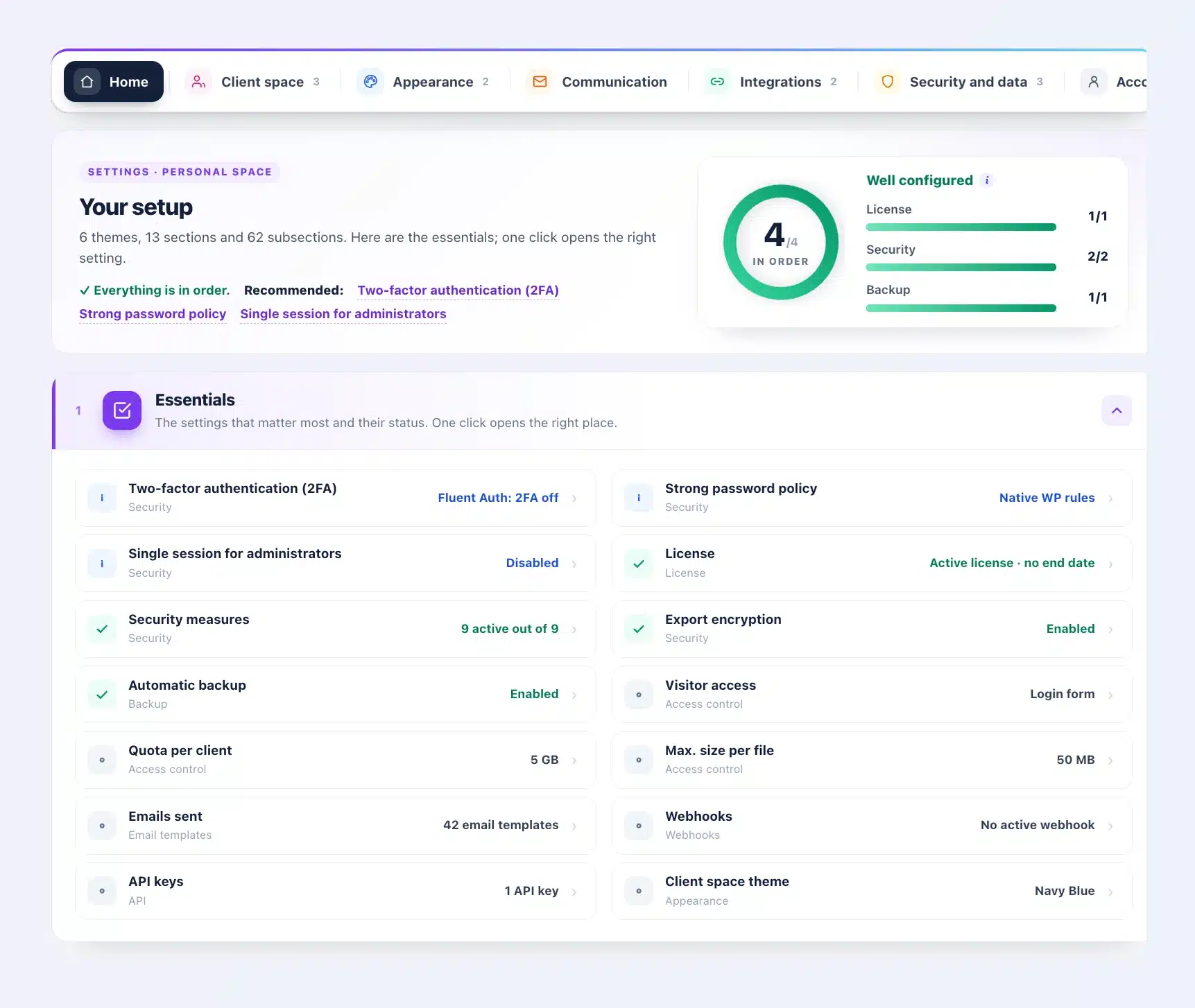
- Six themes on one line: Client space, Appearance, Communication, Integrations, Security and data, Account.
- A left-hand column listing the blocks of the open section. Each link opens its block and highlights it.
- Collapsible blocks, all built the same way: an icon, a title, a short description and their status. The “Expand all” and “Collapse all” buttons are everywhere.
- After saving, a soft green banner confirms the save, then folds away on its own.
- Admin access: the permissions for each role appear below the checked role.
- Appearance: two big choices, Themes & colors or Header & banner. Communication: one link per group of email templates. Integrations: each webhook collapses. Backup: “Configuration” becomes “Planning”.
Security in four pages
Security used to fit on one long page. It is now organized into four: Overview, Key and encryption, Access and sessions, Deletion. Nothing has been removed.
- Each part is a collapsible block, and the diagnostics appear in two easy-to-read columns.
- The key field clearly asks for “Your WordPress password”.
- The “Save your encryption key” reminder becomes a real alert, with a button, and you can hide it for 7 days.
- The security log puts the action in bold, with the date in your language’s format.
- Two-factor authentication recognizes Fluent Auth: code by email, app or passkey.
Your brand, everywhere you and your clients look
With version 20.36, your name and logo arrived in the admin. With 20.37, they take center stage. Your name replaces “Client Vault” in every text of the plugin, in every language, with nothing to translate.
- In the admin: the WordPress menu, the Client Vault top bar with your logo, every plugin screen, the update screen.
- In WordPress: the Plugins page, with your name as the author, the updates page, the new version banner, the license and the upload screen.
- For your clients: document request emails, their calendar, the export of their personal data, the “IP blocked” and “Section unavailable” pages.
- In your tools: your clients’ role in Users, the block in the page editor and the tab in the FluentCRM contact profile.
- Your logo keeps the size of an icon in the menu, whatever the image, and a preview appears next to the field.
- Your footer has its own small editor: bold, italic and links.
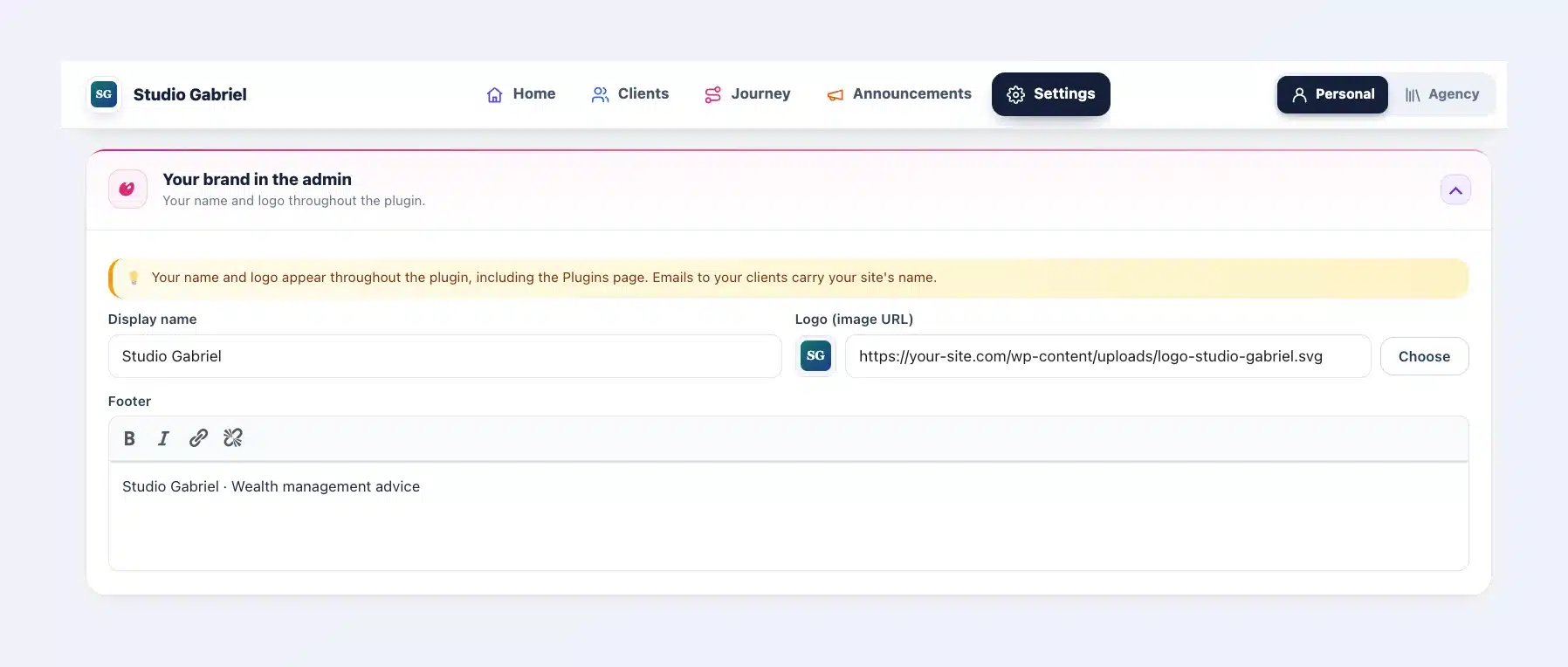
Your name and logo appear as soon as you save, and your brand stays in place even if your license expires. For your clients, it is your tool, from the first login to the last notification. This customization is included in multi-site licenses. All plans are on the pricing page.
Your clients’ appointments, right on their phone
In their vault, your clients have a calendar: their appointments and the deadlines for their folders.
In one click, they add it to the calendar on their phone or computer: Google Calendar, Apple or Outlook. From then on, every new date shows up there on its own.
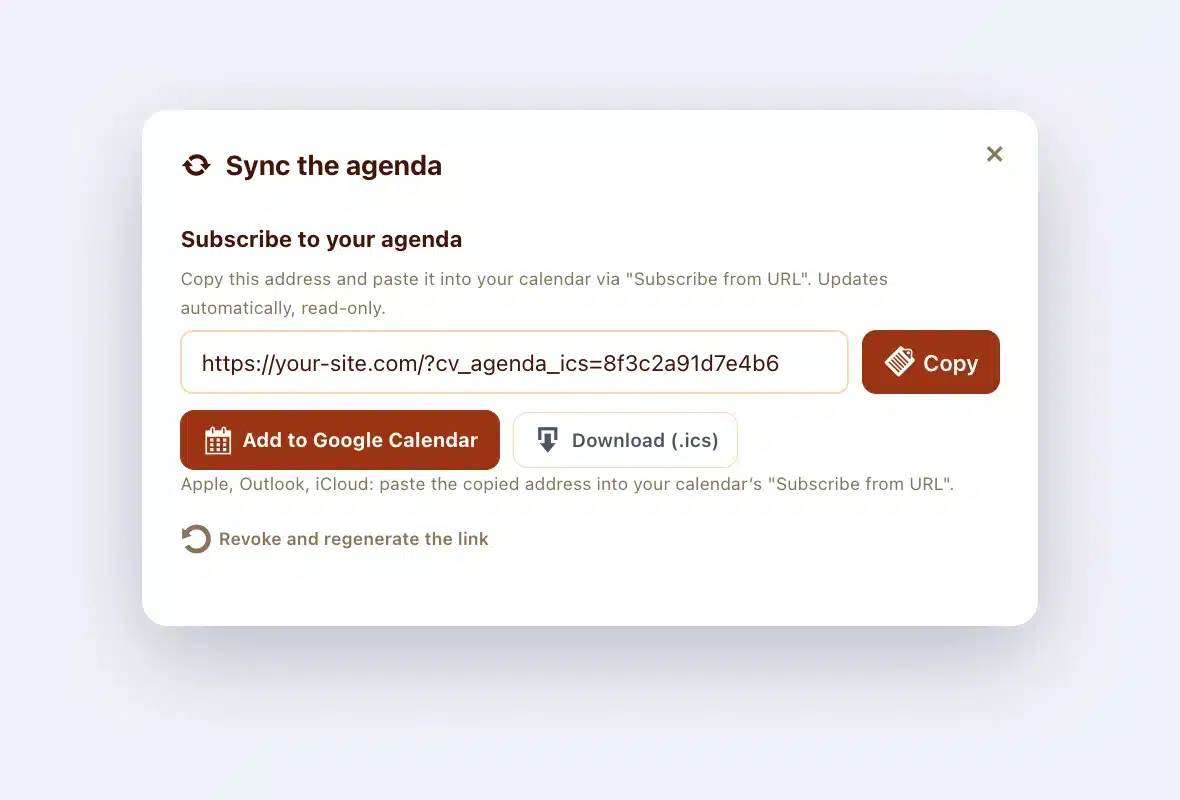
With 20.37, it is even simpler:
- The calendar carries your name on their phone, for example “Studio Gabriel Agenda”.
- Adding it also works on highly protected sites. Client Vault adapts on its own.
- The “Download (.ics)” button works again.
What your clients gain
- Faster replies: their messages, comments and uploads are one click away from you.
- Nothing forgotten: every document request is tracked, and anything overdue shows up right away.
- Support at the right moment: you see who is falling behind in a journey, and you follow up with them on the right step.
- A tool in your name: their vault, their emails, their calendar and their exports carry your brand.
- Flawless text: apostrophes and quotation marks display cleanly everywhere.
And all the little details that matter
- Apostrophes and quotation marks are saved without a backslash: journey titles and descriptions, steps, events, replays, folders, labels, comments, notes, messages and announcements.
- The preview of messages and discussions displays apostrophes and line breaks correctly.
- The “To handle” badges show the right number as soon as the page opens.
- Plurals are correct, for example “2 participants”.
- The new interface appears straight away when each page opens.
Every screen was checked on a real site, page by page, before reaching you.
Our direction stays the same
This redesign changes the way you work, not where your data lives. Your clients, your documents and your settings stay on your server, in the country of your choice. So does your brand: it is stored on your site. Your data never passes through our servers, it stays with you. To choose where to host your vaults, see the hosting page.
A new interface takes a few minutes to find your bearings. Some features have moved. Open each tab once: the home pages are there to guide you. And if anything is missing, tell me in the community. This version exists thanks to your feedback.
Next step
Already using Client Vault? The update is waiting for you in your WordPress dashboard, and your data is kept. Then remember to download your encryption key, in Settings, Security, and store it somewhere safe. The full version history is in the changelog, and what comes next is taking shape on the roadmap.
Client Vault 20.37
A clear admin for you, a vault in your name for your clients
See Client Vault in action in the demo, with nothing to install.
- The new dashboard
- Your journeys, steered at a glance
- Your brand everywhere
- Your data stays with you
Frequently asked questions
Does the redesign remove any features?
No. Every feature, every setting and every option is still there. They are organized behind the navigation bar at the top of the screen: Home, Clients, Journey, Announcements and Settings.
Will I find my settings after the update?
Yes. The update does not change any of your settings, clients, documents or journeys. Only the way they are displayed changes.
Where is Agency mode?
The Personal / Agency switch is at the top right of every screen. In Agency mode, the interface turns purple, and the agency vault, its announcements and its settings have their own home.
Which languages is the new interface translated into?
All 17 Client Vault languages: French, English, Spanish, German, Italian, Portuguese, Romanian, Turkish, Arabic, Hebrew, Hindi, Indonesian, Vietnamese, Japanese, Korean, Simplified Chinese and Traditional Chinese.
How do I show my brand instead of Client Vault?
In the settings, Appearance tab, fill in “Your brand in the admin”: name, logo and footer. They appear throughout the plugin, including the Plugins page. This option is included in multi-site licenses.
Can my clients add their calendar to their phone?
Yes, in one click from their vault. Their appointments and deadlines then show up on their own, under your name. It also works on highly protected sites.
How do I update Client Vault?
From the WordPress Plugins page, click “Update now” on the Client Vault row, or on your brand’s row if you have customized it. Your data and settings are kept.