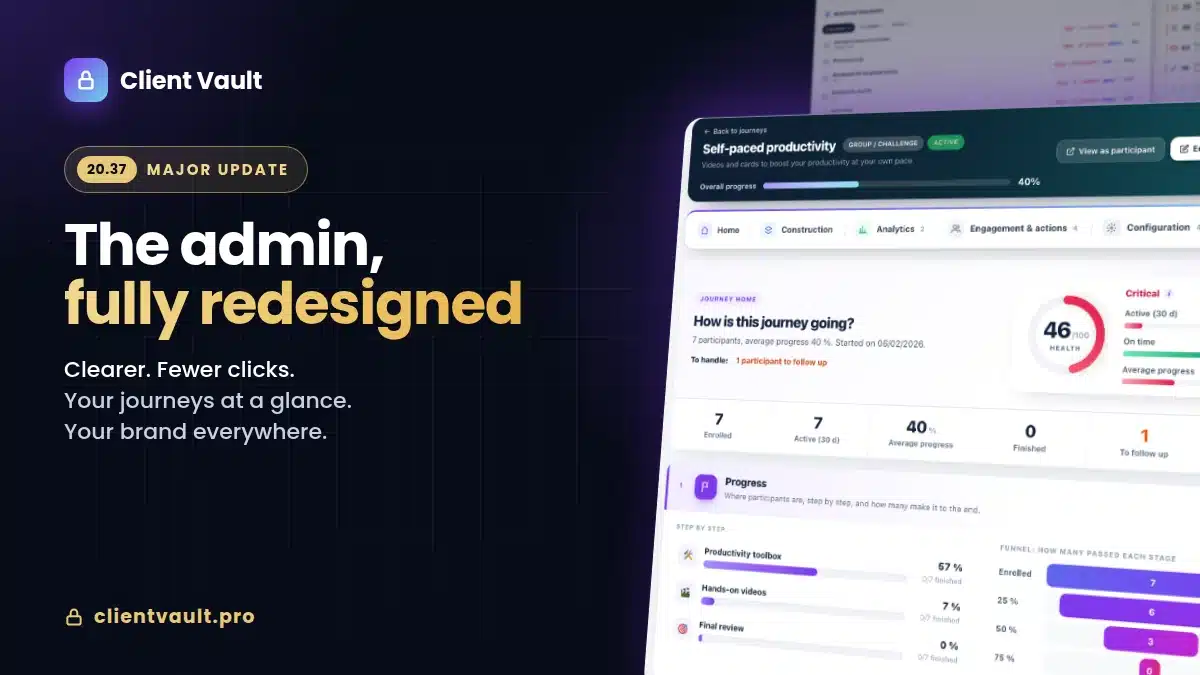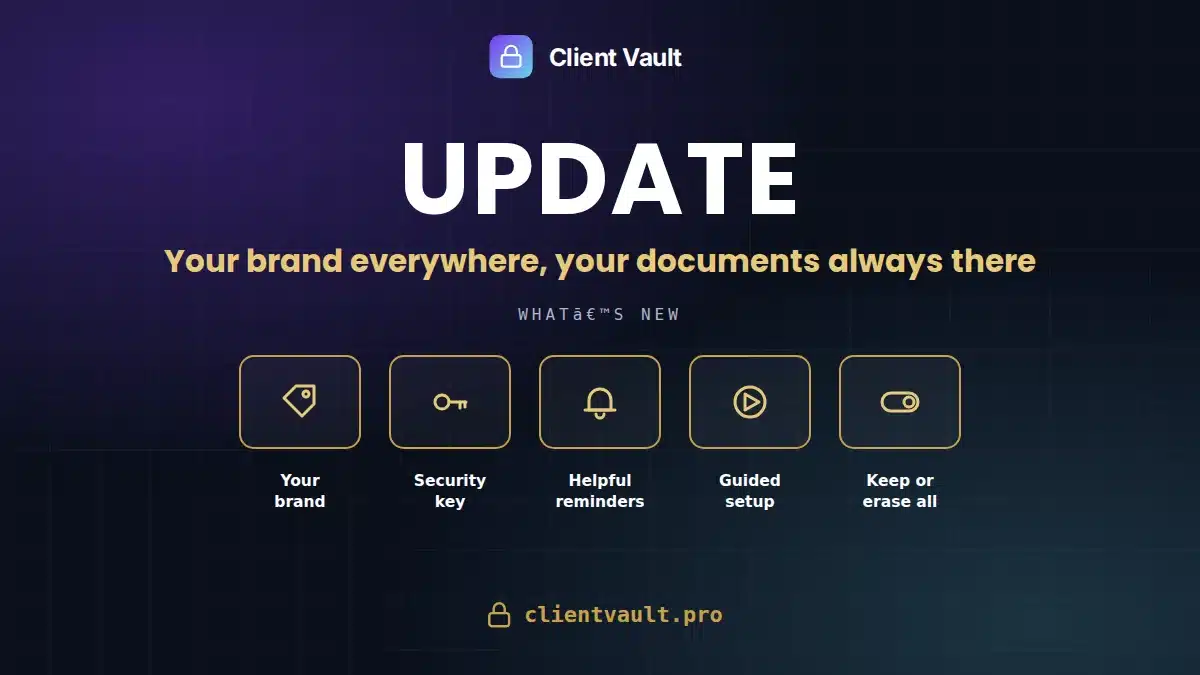
With Client Vault 20.36, your secure digital vault carries your brand, your documents follow you everywhere, even to a new host, and setup guides you step by step.
Some questions come up so often that I know them by heart. “Can Client Vault show my name?” “If I switch hosts, will I get my documents back?” And, right after installing the plugin: “Where do I start?”
I built this version to answer them once and for all. I’ll show you everything, screen by screen.
Client Vault 20.36 at a glance
- Your brand everywhere: your name and logo appear in the admin, and your emails are sent in your site’s name.
- Your documents always within reach: you keep a copy of your security key and put it back in one click.
- A guided start: as soon as it’s installed, Client Vault welcomes you and the setup wizard opens.
- You stay in control: when you delete the plugin, you choose to keep everything or erase everything.
October 1 update: Client Vault 20.36.10
Thanks to Teddy for his feedback. What he saw came from a specific server configuration. We took the opportunity to review the whole plugin.
- Vault agenda: your clients see all their deadlines, from journey steps to document requests.
- Journeys: duplicate a journey, a step or a sub-step in one click.
- Reliability: your vault and your admin stay clean, on every hosting setup.
- New banner: the admin tells you when WordPress error display is on, with the setting to change.
- Personal data: deleting a client’s data now covers all their journey data.
Recommended update, one click from your WordPress dashboard.
Any question, or a doubt about compatibility with your server? Post in the community or contact support: I reply quickly. Thanks again to Teddy!
Your brand everywhere in Client Vault
Many of you install Client Vault for your clients. A WordPress agency, a firm that looks after several businesses, a consultant who equips their clients. You told me: you want your client to see your brand, not mine.
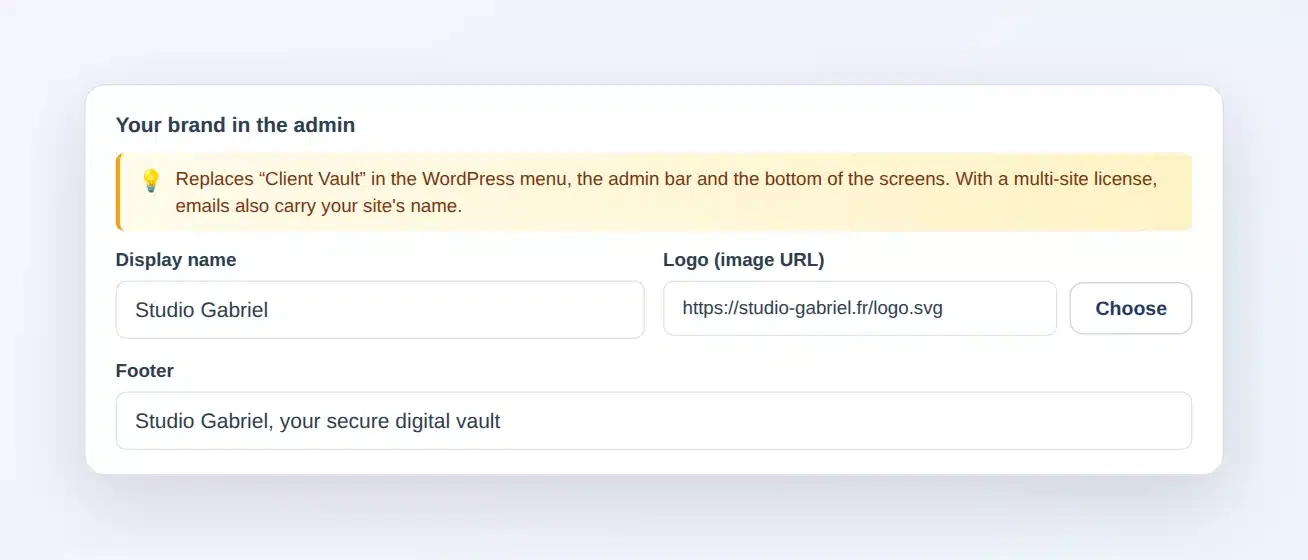
Done. In the settings, Appearance tab, you enter a name, a logo and a footer text. They replace “Client Vault” in the WordPress menu, in the admin bar and at the bottom of every screen.
Emails follow the same path. Your clients receive their notifications in your site’s name. In their eyes, your secure digital vault becomes your tool.
This customization is included in multi-site licenses. With a single-site license, the admin and the emails stay in Client Vault’s name, and the License tab shows you what your plan includes. All plans are on the pricing page.
Your documents always within reach, even after a move
Every document in your vaults is encrypted with AES-256. That’s what protects your clients. And this encryption relies on a key that belongs to your site.
This key is deliberately stored away from the site, in a hidden file. As a result, a regular backup doesn’t always take it along. The day you change hosts, or restore a backup, you want it at hand.
In the settings, Security tab, a new “Encryption key” card shows you where your key is and when you last saved it. One click on “Download the key”, your password, and you get a small file to keep somewhere safe.
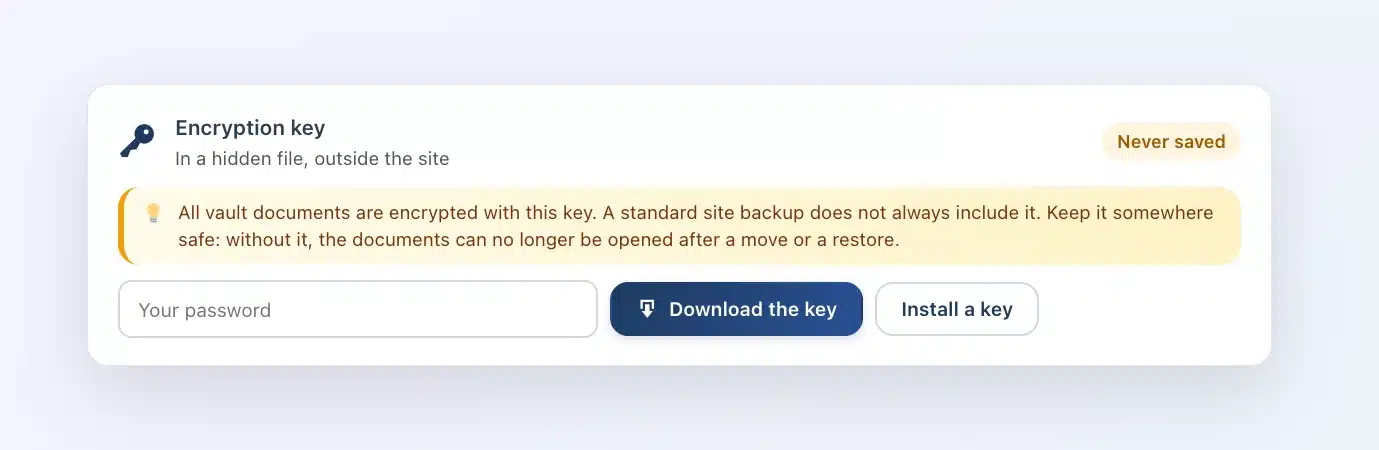
After a move, you paste this key into “Install a key”. Client Vault first tries it on your latest documents. It only installs it if it opens them, and tells you how many documents can be read.
Two reminders are there for you. As long as you have never downloaded your key, a discreet message invites you to do it. And if a document won’t open because the key doesn’t match, you’re told right away, with a button to put the right key back.

A guided start from the moment you install
The first minutes with a new plugin matter. Until now, after activation, you landed back on the plugin list and had to look for Client Vault in the menu.
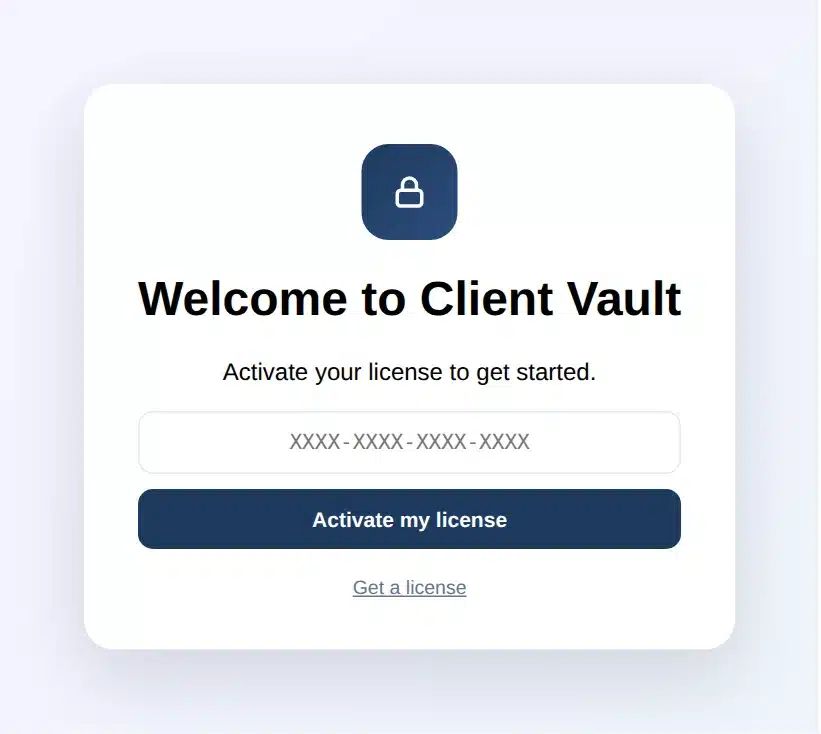
Now Client Vault opens on its own. A welcome screen greets you and asks for your license key. Once it’s activated, the setup wizard takes over: the vault page, access roles, appearance, your first client. You’re ready in a few minutes.
You stay in control, all the way to uninstalling
Sometimes you delete a plugin to reinstall it while you sort out an issue. In that case, you want to find everything again. And sometimes, you really want to start from scratch.
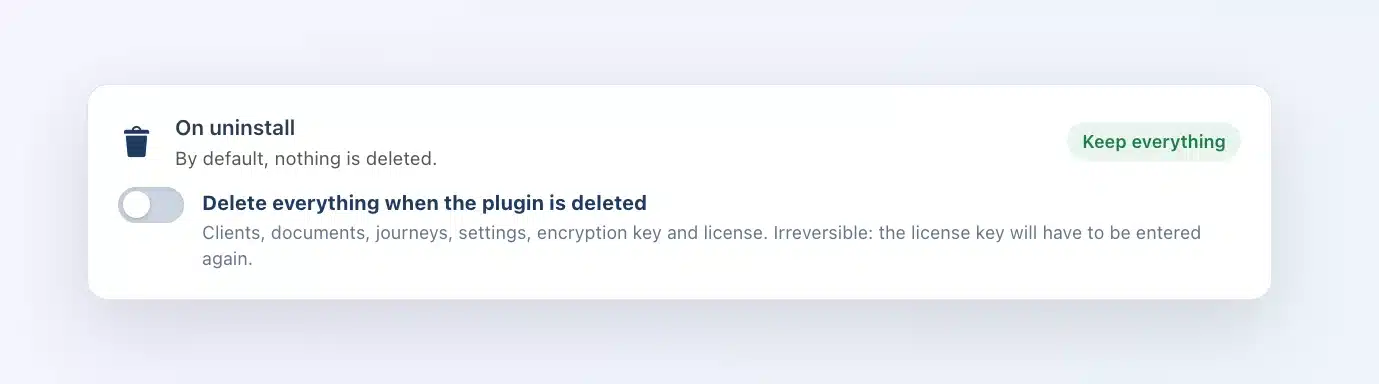
A new “On uninstall” setting, in the Security tab, lets you choose. By default, everything is kept: your clients, your documents, your journeys, your settings and your license. If you turn it on, deleting the plugin erases everything, license included, and you’ll enter your license key again at the next install.
All my plugins work the same way. You keep your bearings from one tool to the next.
Our course doesn’t change
Everything you’ve just read happens on your side. Your brand, your key and your documents stay on your server, in the country you choose. The key file you download goes to your computer, nowhere else. I see nothing of what you store, and that’s by design. To choose where to host your vaults, see the hosting page.
One thing to keep in mind: this key is the only one that opens your documents. If it’s lost, no one can recreate it, not even me. That’s exactly what guarantees your documents stay yours. So keep its file safe, for example in your password manager.
Next step
Already using Client Vault? The update is waiting in your WordPress dashboard. Remember to download your key right after: it takes a minute. The full version details are in the changelog.
Client Vault 20.36
Give every client a vault with your brand
Open the demo and see Client Vault in action, in a few seconds.
- Your client’s vault
- Journeys, step by step
- Your brand in the admin
- Your data on your side
Frequently asked questions
How do I show my brand instead of Client Vault?
In the Client Vault settings, Appearance tab, fill in “Your brand in the admin”: name, logo and footer. This option is included in multi-site licenses.
Do my clients receive emails in my name?
Yes, with a multi-site license: emails carry your site’s name. With a single-site license, they stay in Client Vault’s name.
Where do I download my encryption key?
In the settings, Security tab, “Encryption key” card. Click “Download the key” and confirm with your WordPress password.
What should I do after changing hosts?
Open the “Encryption key” card, click “Install a key” and paste the saved key. Client Vault checks that it opens your documents before installing it.
Does deleting Client Vault erase my data?
No, by default everything is kept, license included. Your data is only erased if you turn on the “On uninstall” setting in the Security tab.
How do I update Client Vault?
From the WordPress Plugins page, click “Update now” on the Client Vault row. Your data and settings are kept.