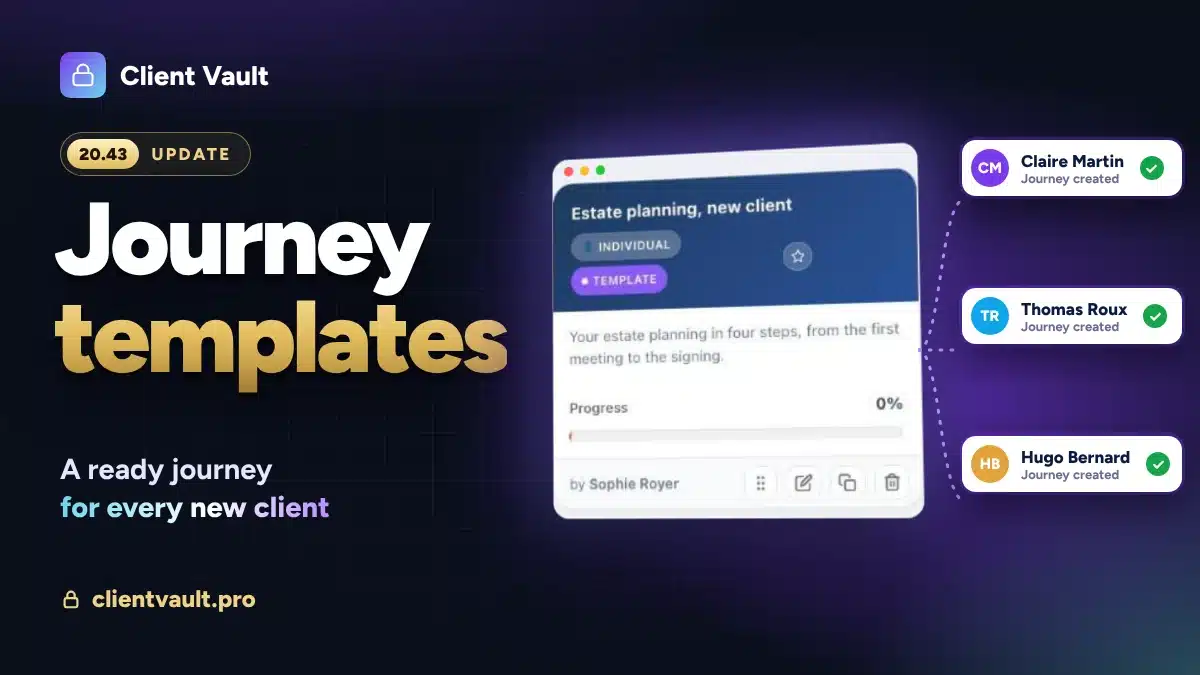
With Client Vault 20.43, you prepare your journey just once. Every new client then gets their own copy, ready to start, even when they arrive through a simple form.
“When a client fills in my form, can their journey create itself, from a template I’ve already prepared?”
This question came to me from a firm that supports families. There, every new case follows the same steps, the same documents, the same deadlines. They wanted to prepare all of it once, then watch it set itself up for each client.
It was on the roadmap. It arrives today, with 20.43.
Client Vault 20.43 at a glance
- Template journeys: a journey prepared once, a copy for every new client.
- Two new FluentCRM actions: create a journey, or a folder, from a template.
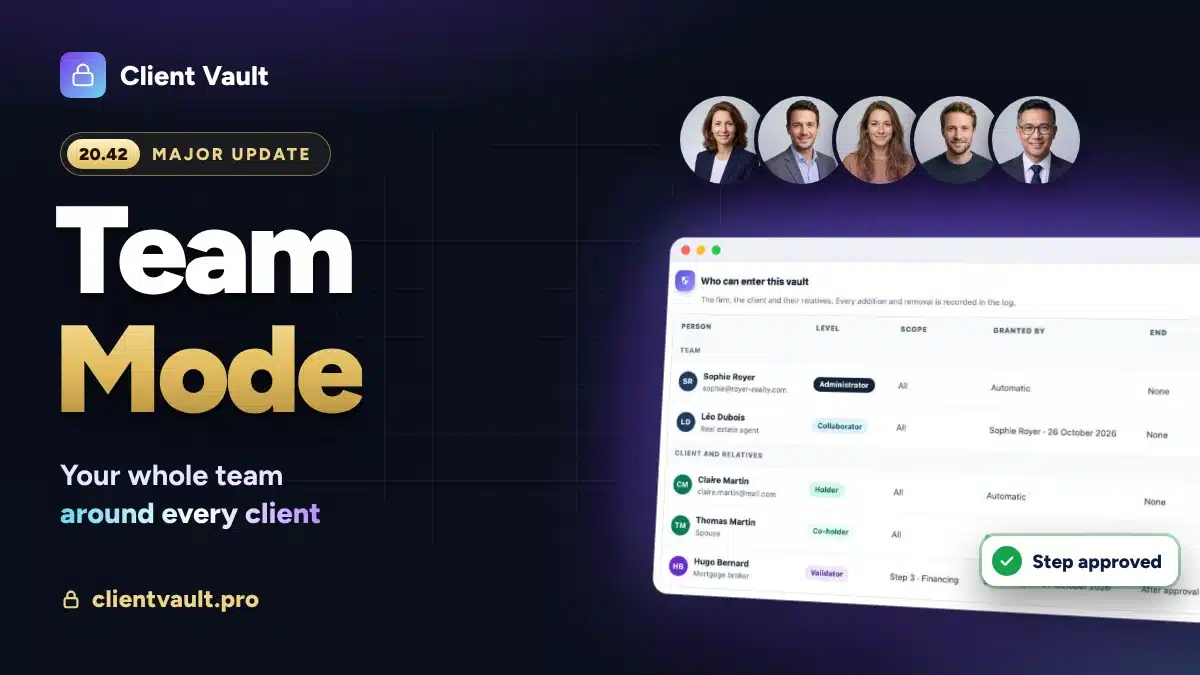
- Team mode benefits too: a folder template linked to a template journey gives every client their own journey, with its step owners.
- Fuller, safer copies: documents, sessions and unlock rules come along, and each copy gets its own webhook address.
- Emails that lead to the right place: a button opens your client’s journey or media library directly.
Template journeys: prepared once, ready for every client
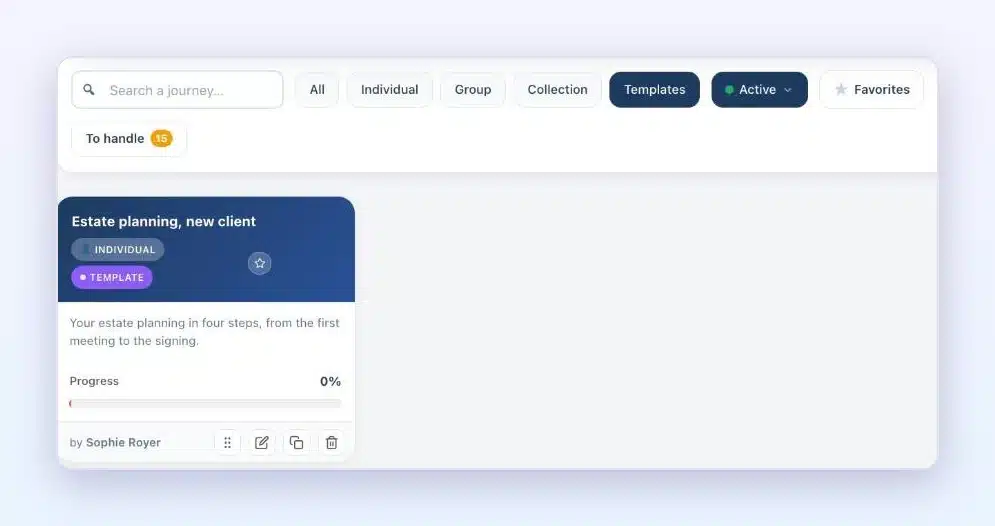
An individual journey can now take the “Template” status. You build it as usual: the steps, the documents to request, the safeguards, the due dates. Then you choose “Template” as its status.
From then on, the template takes no participants. It serves as a base. Every new client gets their own copy, in their name, with their own conversations. Their due dates start from the day their journey is created. And your client receives the welcome email, with a button that opens their journey directly.
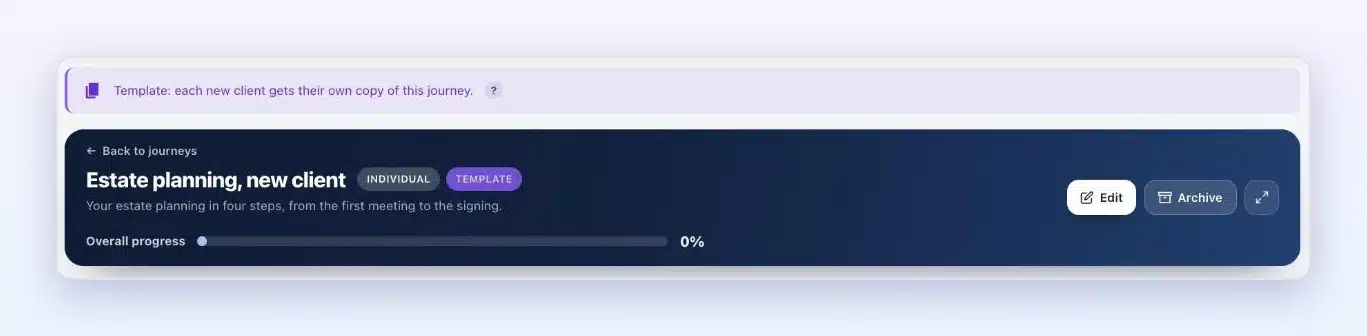
You improve your template whenever you like. The next clients enjoy the new version, and those already on their way keep their journey just as it is.
With FluentCRM, the journey creates itself
FluentCRM is the automation tool of the Fluent ecosystem. An automation starts on an event, such as a submitted Fluent Forms form or a tag added to a contact, then runs a series of actions.
Client Vault adds the “Create a journey from a template” action. You choose your template, and that’s it. When the automation runs, the contact gets their copy of the journey. If they don’t have a client account yet, one is created for them.
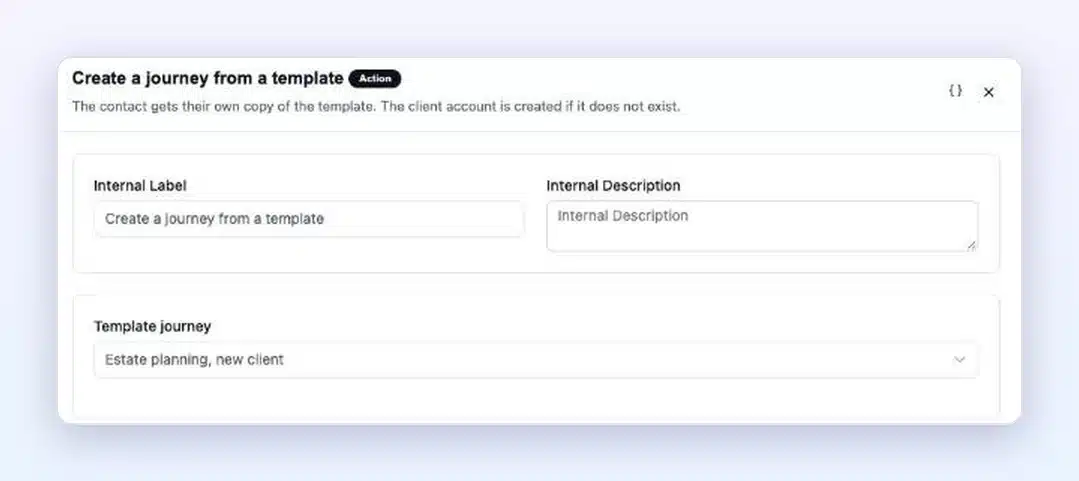
The same client never gets the same active journey twice: if they fill in the form again, they find the one they already have. And your automations that start on a journey now accept a template. They then work for all its copies, with nothing to rebuild.
In Team mode: the folder, the journey and the owners
Team mode already had its folder templates: the documents to request, the due date, the team, and a linked journey. That linked journey can now be a template journey. Each client then gets their own journey, and the owners of each step are carried over from your template.
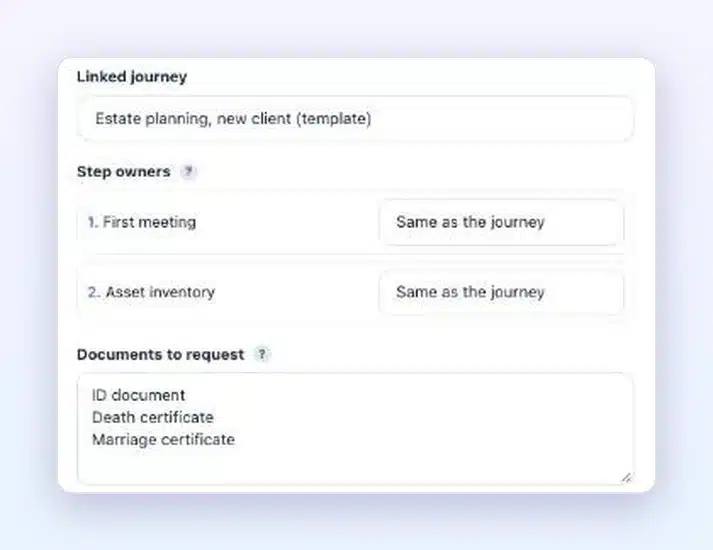
The second FluentCRM action, “Create a folder from a template”, goes further: for a new contact, it opens their whole folder, with the documents to request, the team and the journey. If the contact already has an account, nothing is created on their behalf: your administrators are notified and add the folder from the client’s profile.
Fuller, safer journey copies
A journey’s “Duplicate” button benefits from the same work. The copy brings along the documents attached to steps, the sessions and the progressive unlock rules. You start again from a complete journey, ready for a new group.
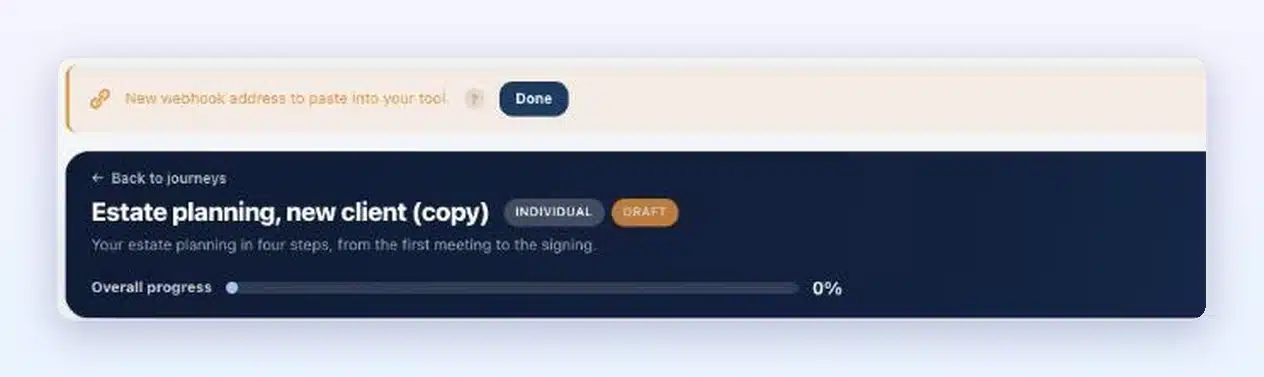
For steps linked to another tool by webhook, each copy gets its own address and its own key. Each journey keeps its signals to itself. A banner gives you the new address to paste into your tool, and disappears when you click “Done”.
Emails that open the right space
Emails sent to journey participants now carry a “View my journey” button. Your client lands straight on their journey, no searching needed. The media library reminder has its own button, “Open the media library”, and it is translated into all 17 Client Vault languages.
For your team, the “My clients” page gets lighter: all notifications are now set in one place, in “My preferences”.
Our course stays the same
One more journey per client, and it all still lives on your site. Your templates, your clients’ copies and their documents stay in your vault, on the server and in the country of your choice. No WeTransfer, no WhatsApp, no Google Drive. To choose where to host your vaults, see the hosting page.
Template journeys apply to individual journeys, where each client moves forward one on one with you. To bring several clients together on one journey, group journeys remain the right choice. The FluentCRM actions require FluentCRM, and folder creation requires Team mode, included in multi-site licenses. All plans are on the pricing page.
Next step
Already using Client Vault? The update is waiting in your WordPress dashboard, and your data is kept. Then open the individual journey you rebuild most often, and switch it to “Template”. Every version detail is in the changelog, and what comes next is taking shape on the roadmap.
Client Vault 20.43
A journey ready for every new client, in your own vault
See Client Vault in action in the demo, ready in seconds.
- Template journeys
- FluentCRM automations
- Complete folders in Team mode
- Your data stays with you
Frequently asked questions
What is a template journey in Client Vault?
It’s an individual journey you prepare once and that serves as a base. It takes no participants. Every new client gets their own copy, with due dates calculated from the day it is created.
How do I create a journey automatically from a form?
In FluentCRM, create an automation that starts when your form is submitted, then add the Client Vault action “Create a journey from a template” and choose your template. The contact gets their copy, and their client account is created if it does not exist.
If I edit my template, what happens to the journeys already created?
They stay as they are. Your changes apply to the next clients, and every client already on their way keeps their own journey.
Can a group journey become a template?
No, templates apply to individual journeys. A group journey already brings several clients together on the same journey. To start a new one, use the “Duplicate” button.
Do I need Team mode to use template journeys?
No. Template journeys and the “Create a journey from a template” action work without Team mode. Only the “Create a folder from a template” action requires it.
Why does a journey copy get a new webhook address?
So that each journey receives its own signals. Each copy has its own address and its own key. A banner gives it to you, so you can paste it into the tool that sends the signal.
How do I update Client Vault?
On the WordPress Plugins page, click “Update now” on the Client Vault row, or on your own brand’s row if you have customized it. Your data and settings are kept.