With Client Vault 20.42, your team, your client, their family and their partners finally work in the same vault. Everyone sees what concerns them, everyone knows what to do, and you see where each folder stands.

A client folder rarely involves just one person. There is you. Often a colleague. The client, of course, and sometimes a spouse or business partner. And then an outside partner: a mortgage broker, an accountant, a notary.
Until now, Client Vault mostly brought two people together, you and your client. The idea of going further came from one of you, a law firm that supports families alongside their advisers. Team mode was born from that request, and from your feedback in the community.
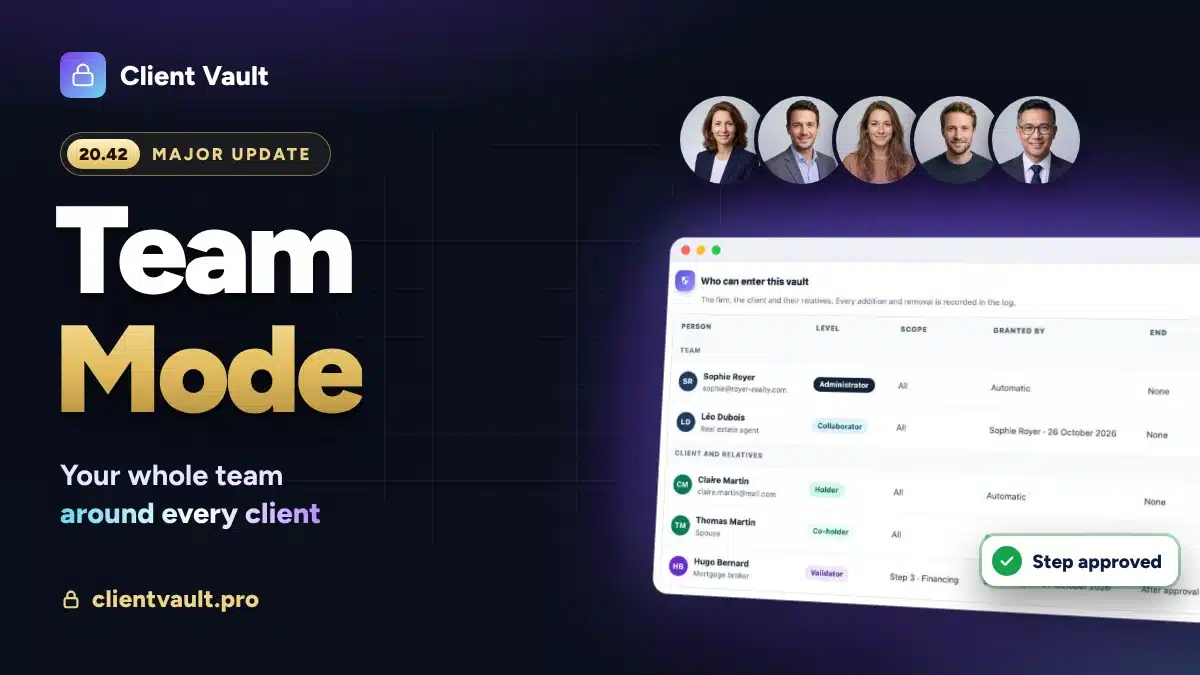
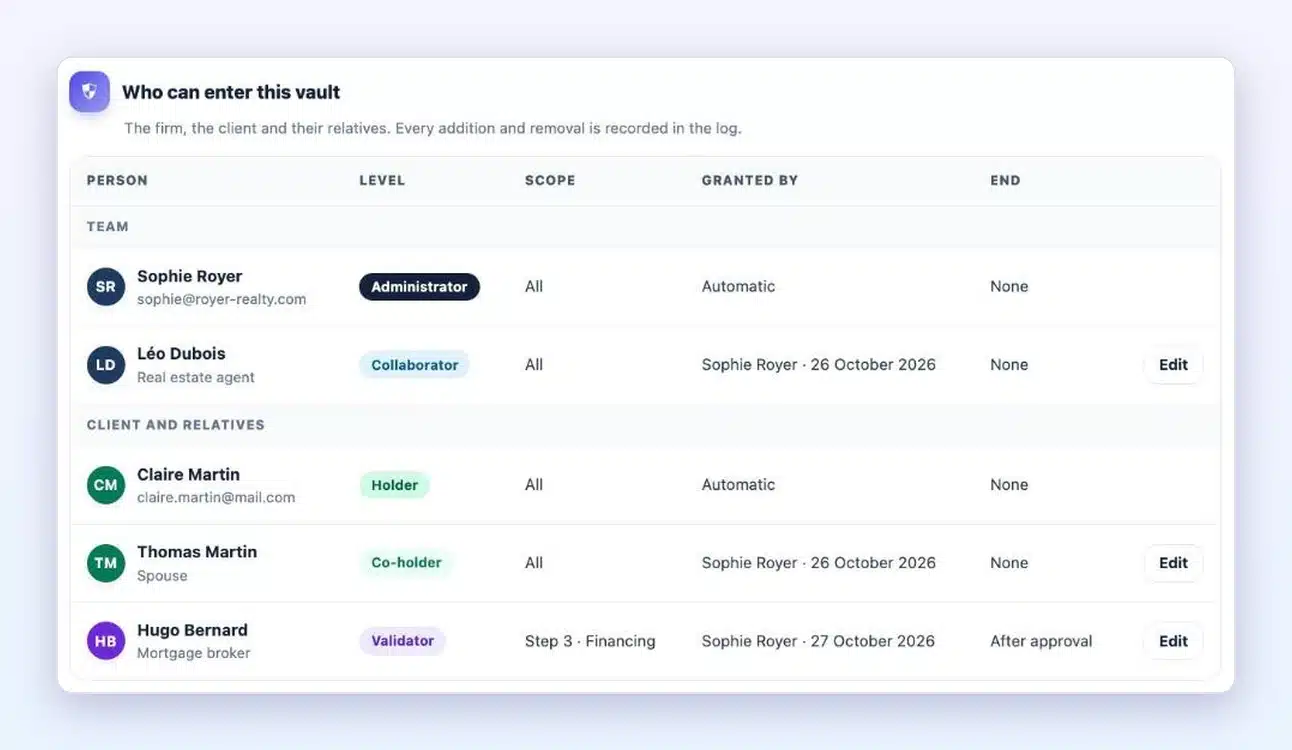
This is the biggest Client Vault update to date. As an example, I will take a real estate agency: Sophie runs it, Léo is an agent there, Claire is buying a house with her spouse Thomas, and Hugo, their mortgage broker, handles the loan.
Client Vault 20.42 at a glance
- Team mode: your colleagues follow the clients you entrust to them, in the same vault.
- Your client’s family and partners: a spouse as co-holder, a guest on one folder, a validator on a single step.
- One owner per step: everyone finds their steps in their “To do” list.
- Three new safeguards: a validator’s approval, each owner’s share, a completed FluentBoards task.
- Tracking: all folders, the step each one is at, and who needs to act.
- Folders that build themselves: templates, creation from a form, automatic reminders and closing with an archive.
- For everyone: a guided start, a simpler client space, a more flexible page block and texts you edit yourself.
Team mode: everyone in the same vault
Team mode has its own menu, Team, with six tabs: Tracking, To do, Members, Templates, My preferences and Settings. A panel guides you through setting it up, and it switches on in one click.
Your team
You invite your colleagues by email, from Members. Each one gets a level: Administrator, Manager, Collaborator or Read. A collaborator sees the clients you entrust to them, and only those. Settings stay in your hands.
Your client and their family
From the Access tab of the client card, you open the vault to the right people, at the right size:
- Co-holder: the spouse or business partner sees the whole vault, writes and uploads documents from their own space.
- Guest: they access one specific folder, read-only if you wish.
- Validator: they see a single step and its documents. Their access closes as soon as they have approved.
Each access can have an end date, with a reminder one week before. Every addition and every removal is recorded in the log. You always know who enters your client’s vault.
Every step has an owner
When building a journey, you say who looks after each step: the client, a team member, a manager or a guest. The name appears right on the step. You can also adjust it client by client.
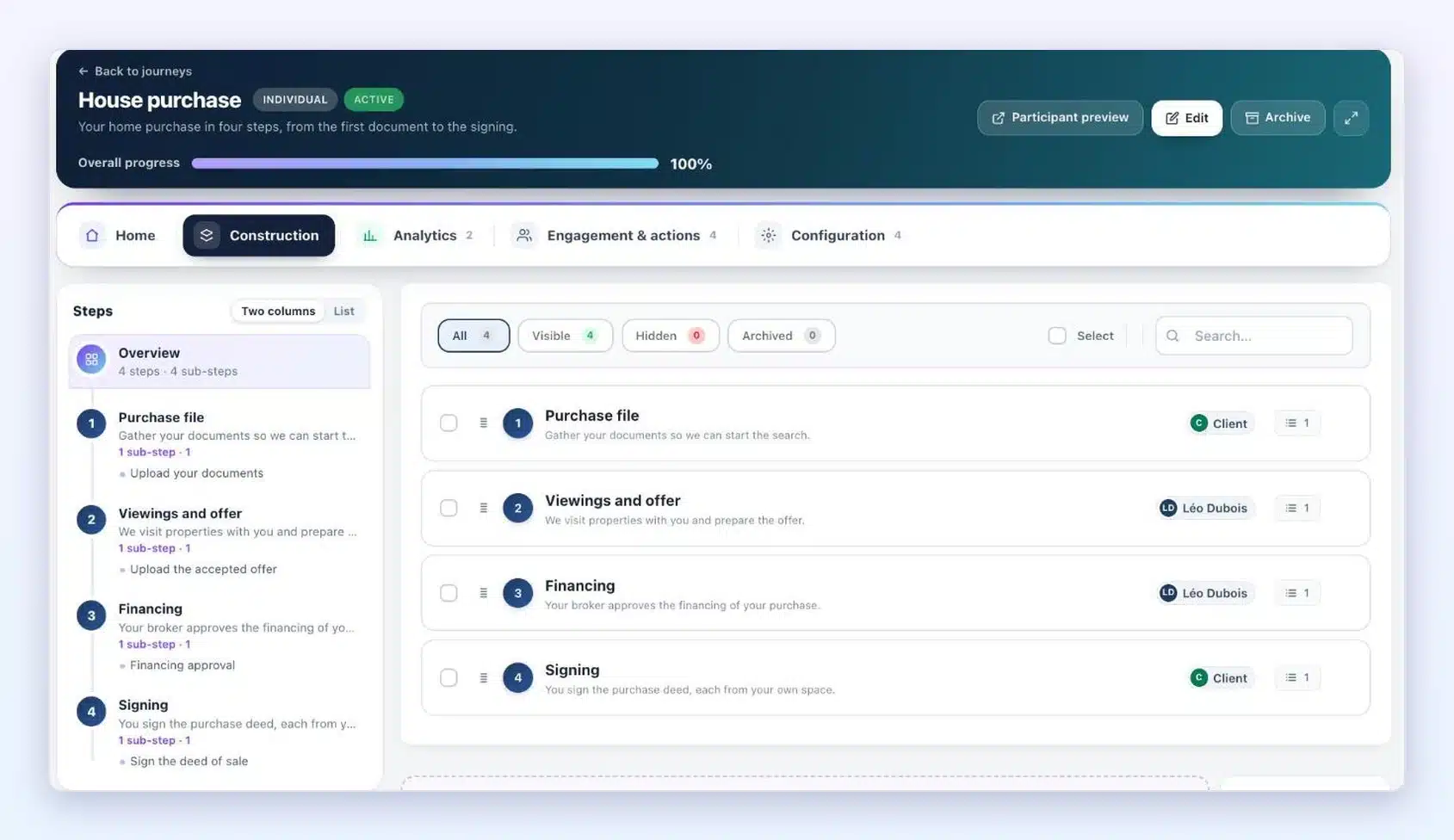
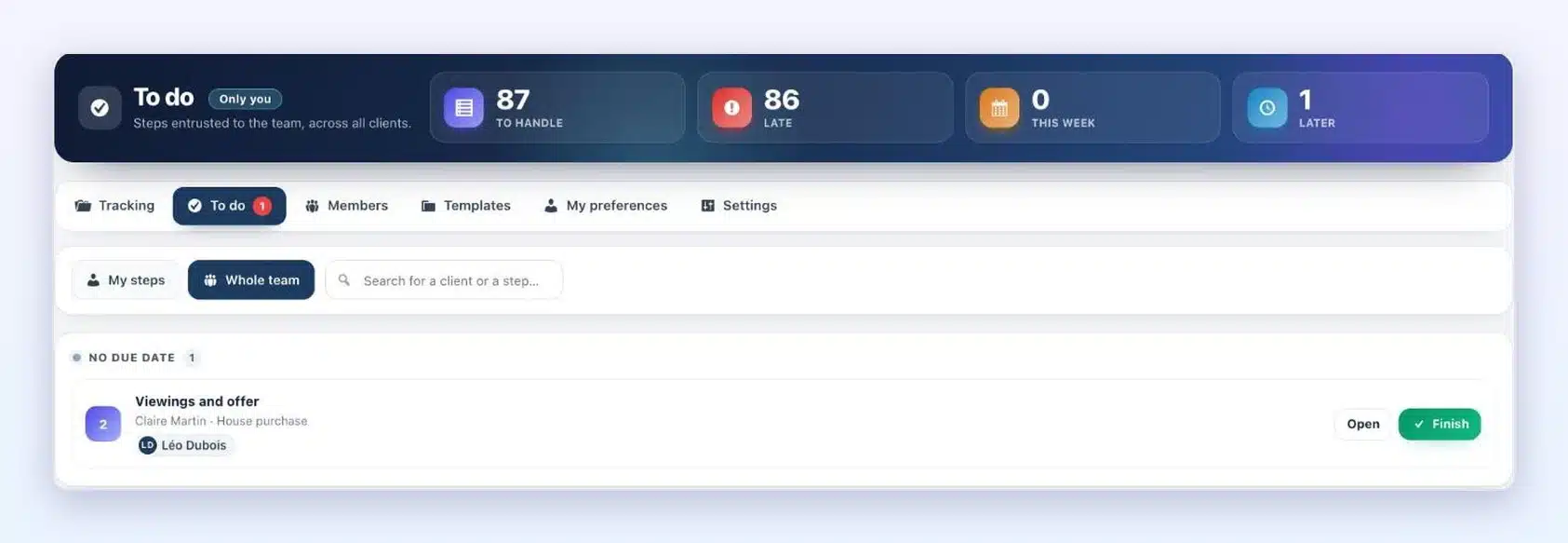
Each member then opens their “To do” list. There they find every step entrusted to them, for all their clients, with a button to finish them. When a step is done, the next owner is notified.
On the client side, it is just as simple. Claire sees her next action at the top of her vault, in “Your to-do list”. Conversations happen with several people, each message carries its author’s name, and an @mention notifies the right person.
A partner approves a step, without seeing the rest
Hugo, the mortgage broker, does not need the whole folder. He receives a link by email. He sees the Financing step and its documents, on a simple screen. He approves, or sends the step back with a comment. The next step opens by itself.
Your partners move forward with you, and the rest of your client’s folder stays private.
Safeguards for a tailor-made journey
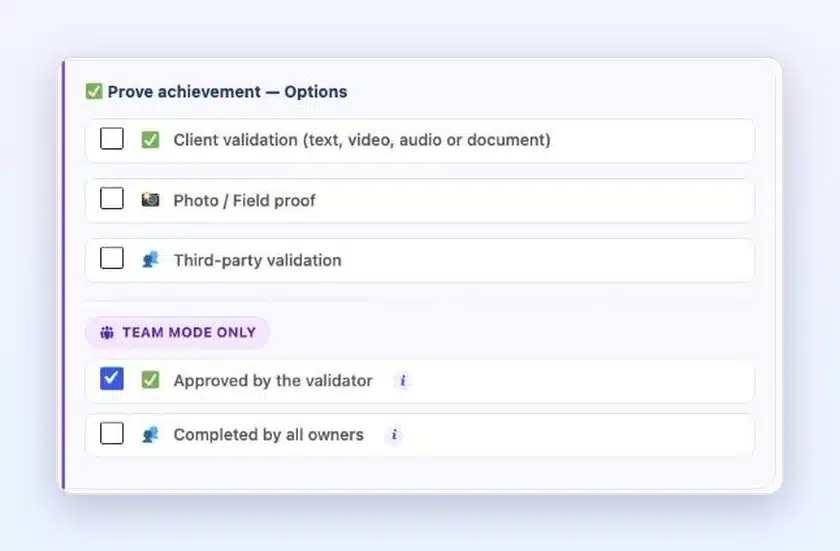
What moves a step forward is the safeguards. You choose from six families: upload a document, prove an achievement, assess skills, schedule an action, buy a product, or receive a signal from another tool. You combine them freely.
Team mode adds three, marked “Team mode only”:
- Approved by the validator: the step waits for your partner’s approval.
- Completed by all owners: everyone confirms their share, and the step ends with the last one.
- FluentBoards task completed: the task on your project board moves the journey forward.
And for all users, the “Shop and sales” card brings together buying a product and affiliate sales with Fluent Affiliate: a step can ask for sales, which earn points and the Seller badge.
Tracking: where each folder stands, and who needs to act
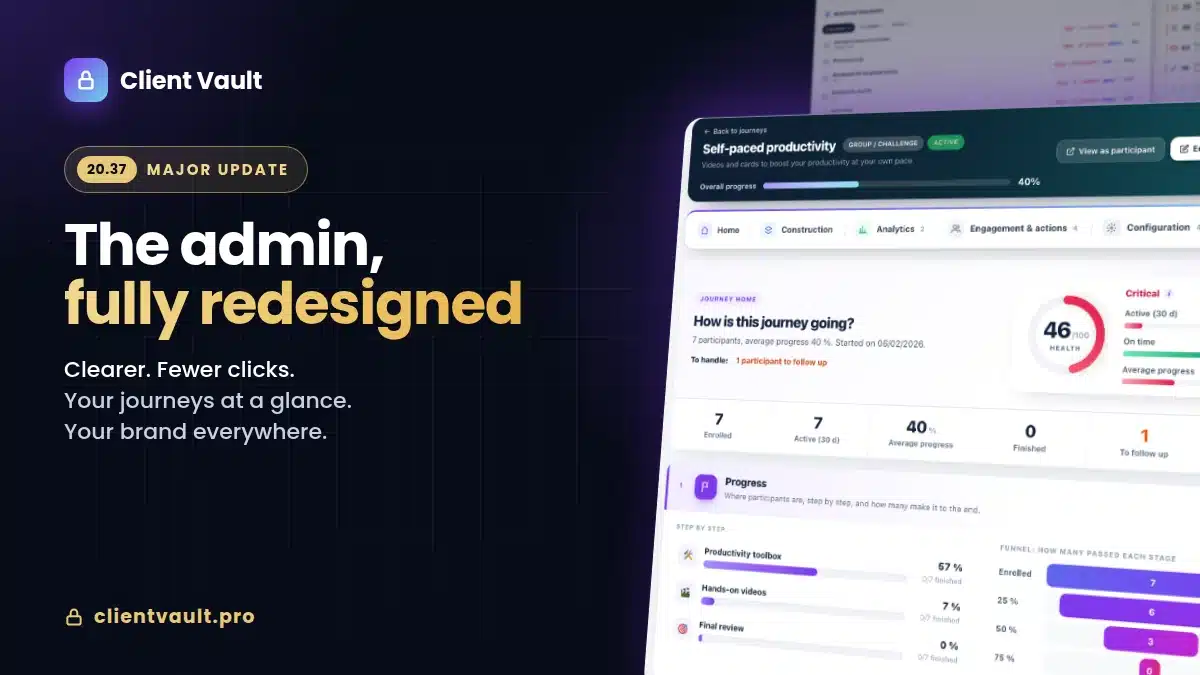
The Team menu opens on Tracking. All your folders are there, with the current step, the due date and the team. Filters go straight to the essentials: To follow, Late, Your turn, or a specific journey.
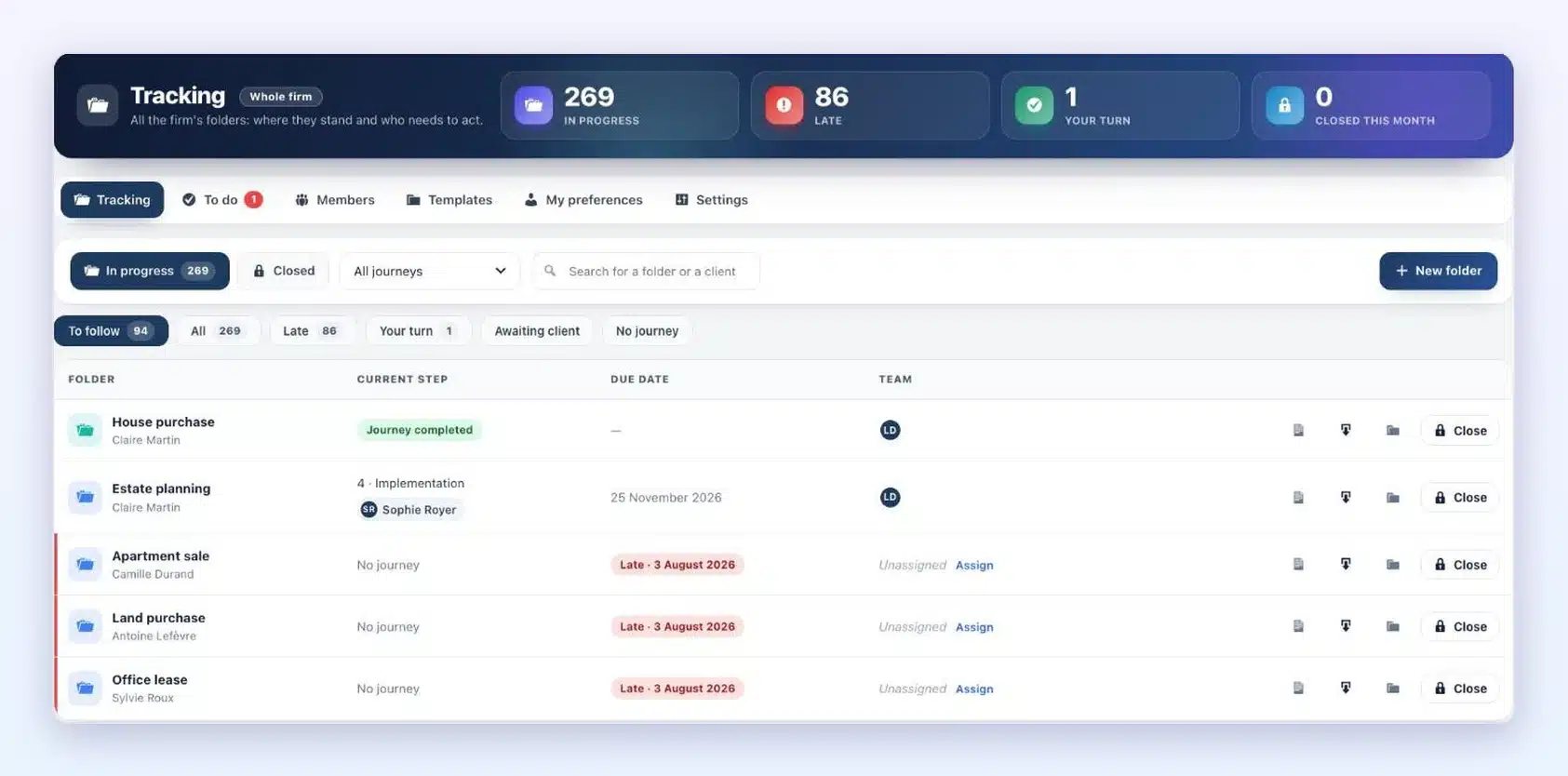
- Unassigned: a folder that nobody follows says so clearly, with an “Assign” button.
- Automatic reminders: late steps remind their owner, with one setting per journey and a test email to preview the message before you switch it on.
- Workload: each member’s current steps, at a glance.
- Absences and departures: a stand-in takes over during an absence, and when a colleague leaves, their clients and steps pass to another colleague.
Folders ready in one click
The folder remains your unit of work: your client’s files, conversations and journey, in one place. This version saves you time on every new folder.
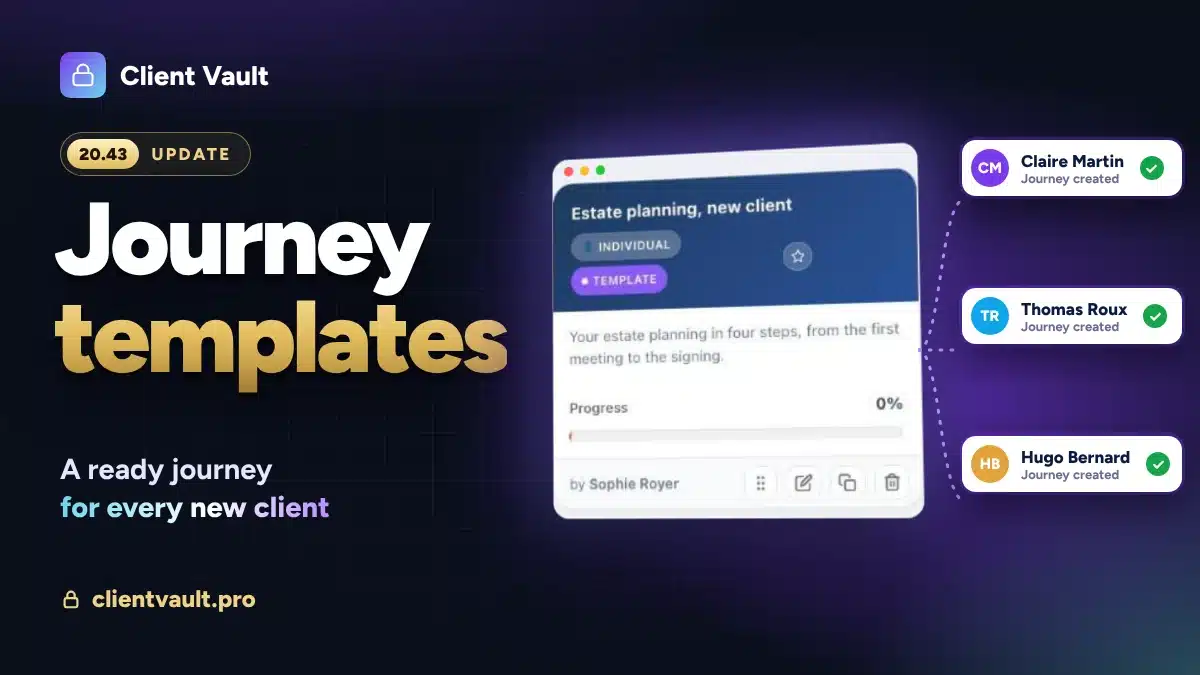
- Folder templates: journey, documents to request, due date, team and owners. You start from a template, or from scratch. A well-filled folder becomes a template itself in one click.
- Creation from a form: with Fluent Forms, a request received creates the client, opens their folder from the template, starts the journey and links it to the right adviser.
- Steps specific to one client: you add a step for a single client, without touching the journey of the others.
- Closing: the folder becomes read-only, your client is notified, and you keep a .zip archive with a dated PDF log. It can be reopened if needed.
Everyone receives what concerns them
In My preferences, each member chooses their emails: new file, new message, step assigned, step completed, mention. For each one: right away, in a daily summary, in a weekly summary, or never.
The activity report arrives at the pace you choose: every day, every week, every two weeks, every month or every quarter. Client by client, what moved forward, the current step and who needs to act. It is only sent when there is something new.
Your Fluent tools, connected
- FluentBoards: the tasks on your project board are linked to the journey steps. Your client follows their journey, your team follows its tasks.
- FluentCRM: a company can become a member of a folder. All its contacts get access, and the access is removed when someone leaves the company. Internal notes appear in the Client Vault tab of the contact record.
- Fluent Forms: a form assigns the adviser, or creates the whole folder.
And for all Client Vault users
Team mode is the star, but the whole plugin has moved forward.
- A guided start: a three-step wizard at installation, then a “Get started” screen until your first client.
- A simpler client space: your client lands on their vault as soon as they log in, with their next step at the top, a single “Your to-do list”, and empty pages that explain what to do.
- A more flexible page block: the Client Vault block shows the full vault, a specific journey, a space’s widget bar or the widgets of your choice.
- Your words: the interface texts and tooltips are edited in Settings, Labels. “Journey”, “Step” or “Folder” can take the words of your profession.
- Details that matter: dates follow your WordPress format, sizes appear in KB, MB and GB, and every screen shows its outline as soon as you click.
Team mode on video
In three minutes, follow Claire and Thomas’s file at the Royer Agency: five people, one vault, and each one only sees what concerns them.

Our course does not change
One more team around the vault does not mean one more server. Your clients, their family, your colleagues and all the documents stay on your site, in the country of your choice. Your data stays with you, never on our servers. To choose where to host your vaults, see the hosting page.
Team mode is included in multi-site licenses. With a single-site license, the Team menu does not appear, and everything else in this update is waiting for you. The FluentBoards, Fluent Forms and Fluent Affiliate integrations require the plugin concerned to be installed. All the plans are on the pricing page.
Next step
Already using Client Vault? The update is waiting for you in your WordPress dashboard, and your data is kept. Then open the Team menu: the setup panel guides you, step by step. Every version detail is in the changelog, and what comes next is taking shape on the roadmap.
Client Vault 20.42
Your whole team around every client, in your own secure vault
See Client Vault in action in the demo, ready in a few seconds.
- One owner per step
- Your client’s family and partners
- Tracking for every folder
- Your data stays with you
Frequently asked questions
What is Client Vault’s Team mode?
It is the ability to work together in a client’s vault: your colleagues, your client, their family and their partners. Everyone sees what concerns them, and each step of a journey can have its owner.
Is Team mode included in my license?
It is included in multi-site licenses. With a single-site license, the Team menu does not appear. The rest of the update is available to everyone.
Can my client share their vault with their spouse?
Yes. From the Access tab of the client card, you add their spouse or business partner as co-holder. They see the whole vault, and write and upload documents from their own space.
Does an outside partner need to see the whole folder?
No. As a validator, they see a single step and its documents. They approve or send the step back with a comment, then their access closes.
How do I know where each folder stands?
Open Team, then Tracking. Each folder shows its current step, its due date and its team. Filters show late folders, those waiting for your action, or those of a specific journey.
Do I need FluentBoards to use Team mode?
No. FluentBoards, Fluent Forms and FluentCRM add connections on top. Team mode works without them.
How do I update Client Vault?
From the Plugins page in WordPress, click “Update” on the Client Vault row, or on your own brand if you have customized it. Your data and settings are kept.