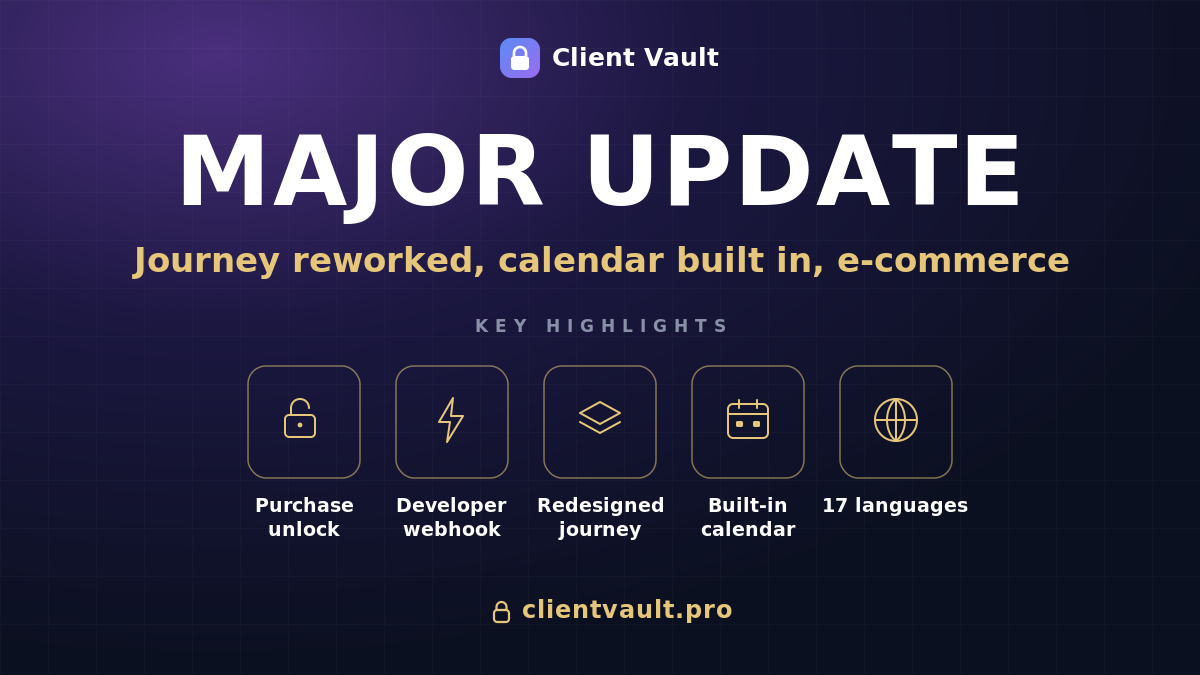
This update adds three important things. Journey steps that unlock after a purchase or external validation, a completely redesigned journey, and a real calendar within the vault, synchronized with your vault and also Google, Apple, and Outlook. All without ever moving your data off your server.
I prefer to build in the open. For several months, I have accumulated versions: corrections, adjustments, and, most importantly, major new building blocks. Rather than delivering them silently, I will explain here what concretely changes for you and for your clients. No jargon, no endless list: just the main points, and why they save you time. The full details remain available in the changelog.

What’s new, at a glance
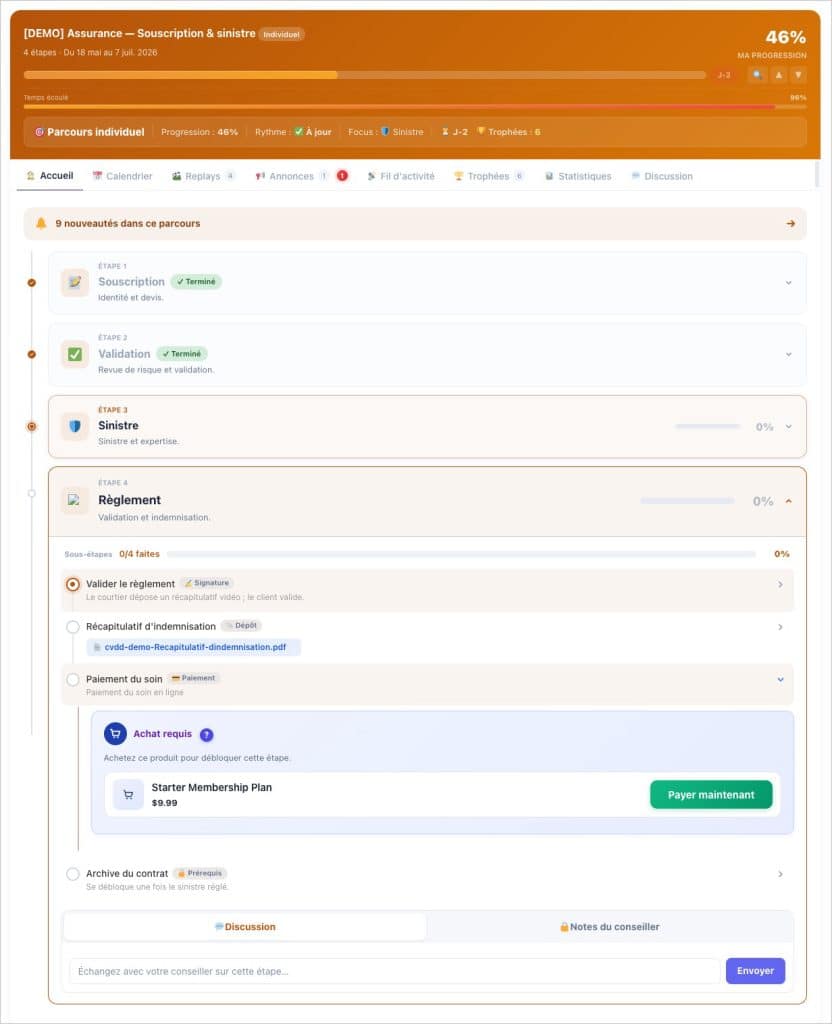
- E-commerce and webhook safeguards — a journey step unlocks after a purchase or validation from an external tool.
- Redesigned journey — clearer steps, matching your journey’s colors, and a drawer combining updates and plan.
- Calendar in the vault — a real calendar synchronized with your vault and also Google, Apple, and Outlook, with email reminders.
- Flexible calendar and journey sessions — each client follows their own pace; steps are organized into sessions.
- Due dates and expiration dates — on every document, media, record, link, note, and folder.
- Comfort and reliability — parts requests organized by folder, diagnostic report, 17 audited languages, and numerous bugs fixed.
The safeguards team is complete
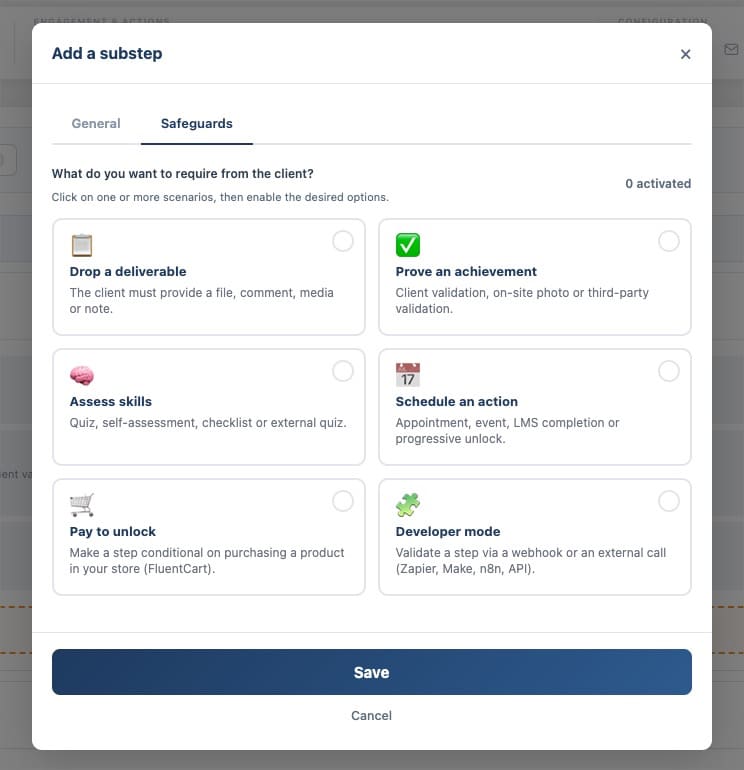
Until now, moving a client through a journey relied heavily on 4 types of verifications. (Submit a deliverable, Prove an achievement, Assess skills, Plan an action). Two use cases remained to fully exploit the potential of the safeguards. Two new « safeguards » now handle them for you.
The first connects the journey to your Fluent Cart store (WooCommerce coming soon). A step can be unlocked after a product purchase : the client pays, the step opens, without intervention. Payment happens directly within the step, the system manages product variations, and if the purchase is canceled, the step re-locks itself.
The second safeguard is for more technical profiles : a step is validated via an external call from a tool like Zapier, Make, n8n, or any service accepting Webhooks. The client initiates an action, a window awaits real-time confirmation, and the step validates as soon as your automation decides.
For a WordPress agency, this is a clear entry point to automation : you connect your client’s ecosystem (payment, CRM, forms) without coding a custom funnel. I will dedicate an entire article to these two safeguards.
A store integrated into the journey
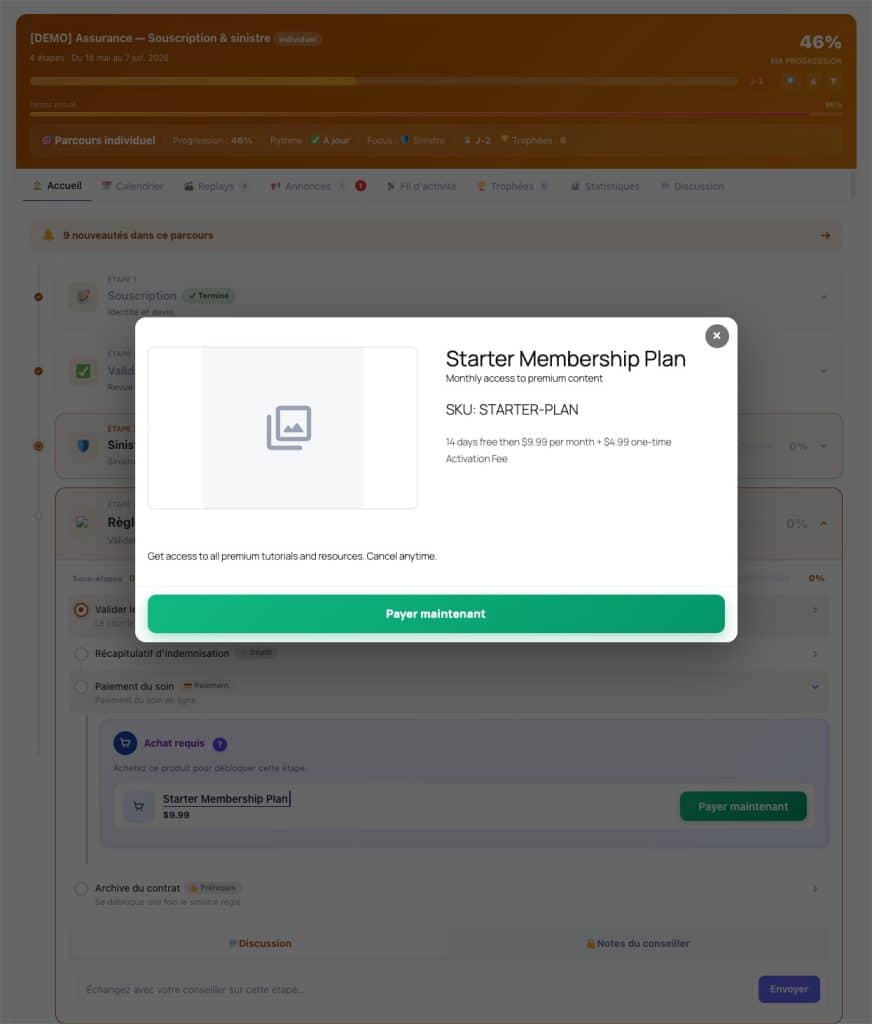
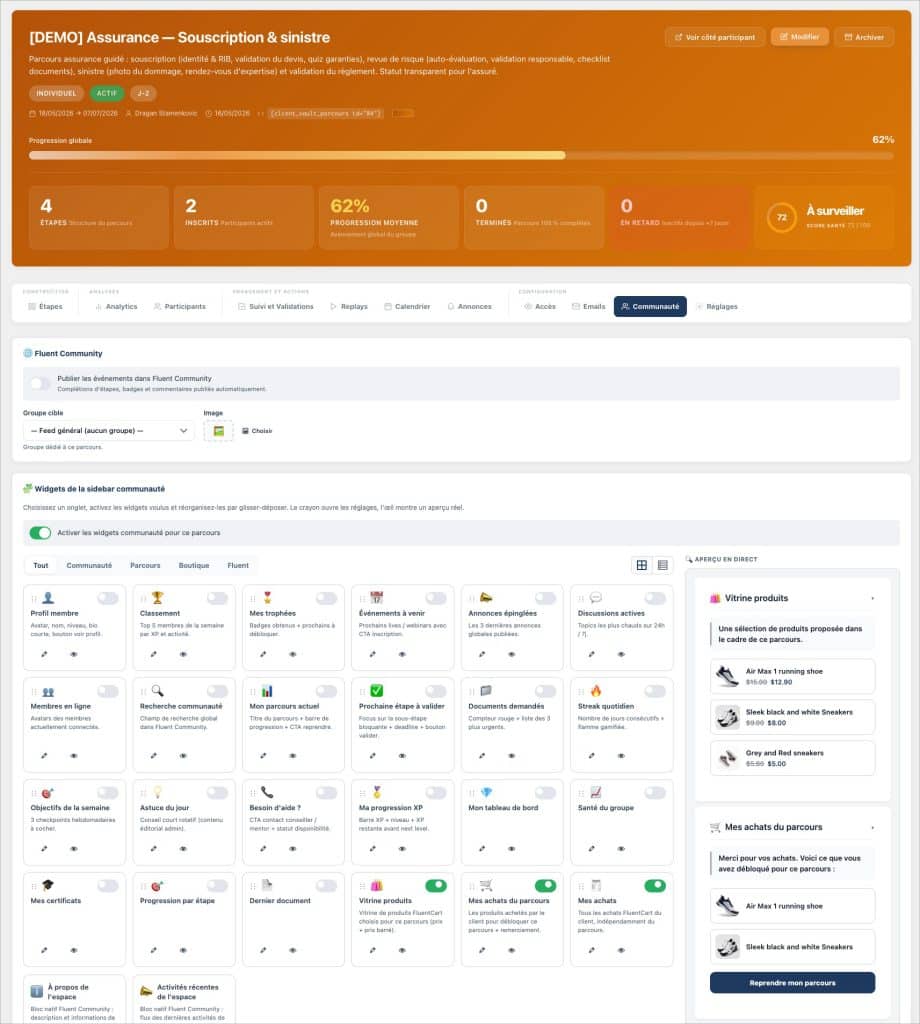
Unlocking a step through a purchase only makes sense if the client can buy without leaving their space. This is the whole point of the new store widgets, which appear in the journey’s sidebar and transform the support into a real point of sale.
- A product showcase that you configure step by step : you choose what to highlight to whom.
- Client purchases, on two levels : what they bought in this journey, and all their purchases.
- A badge on the product page that announces “unlocks step X” to subscribers : the link between purchase and progress becomes clear.
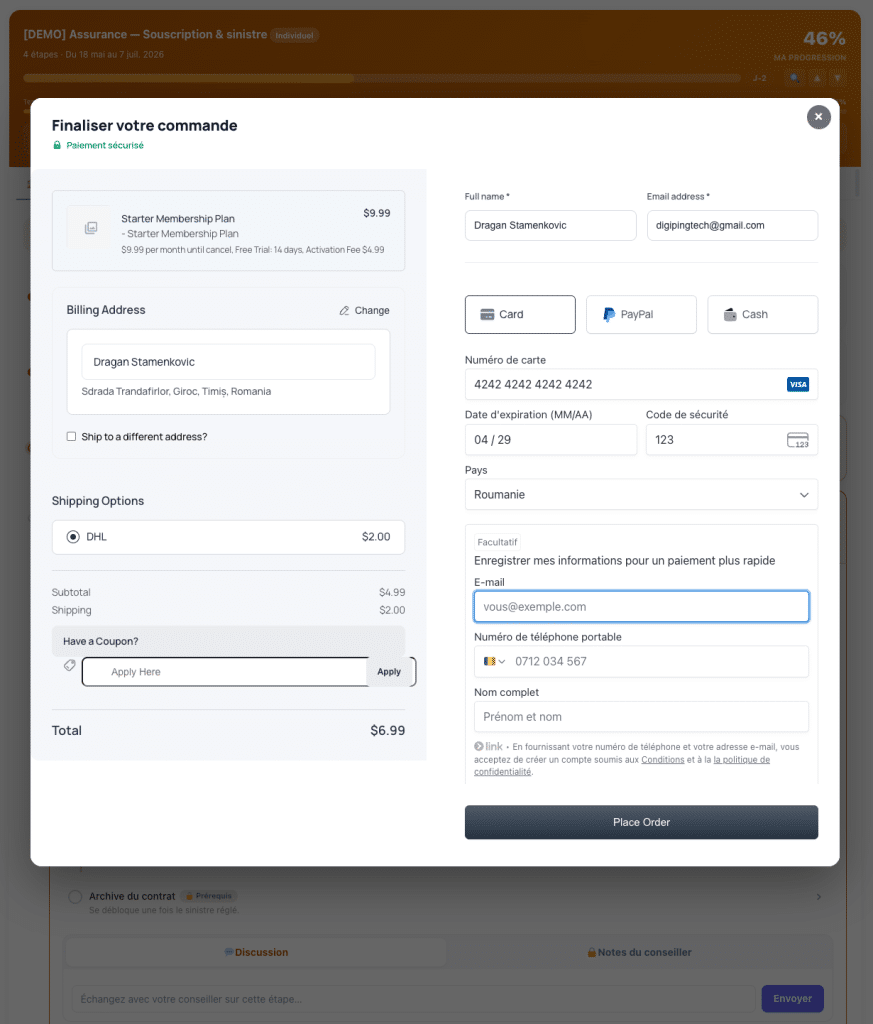
New E-Commerce widgets for Fluent Community and a new interface to manage them
Regarding settings, a widget manager brings everything together in a clear interface — tabs, card settings, previews with demo data, list or grid toggle. You customize the title and link of each widget per journey, and you reintegrate the native store modules as needed. In use, the client browses products in a clean window, without distraction during purchase. For me, this is one of the most strategic building blocks of this version: it finally connects content, sales, and progress in the same place.
The journey, completely redesigned
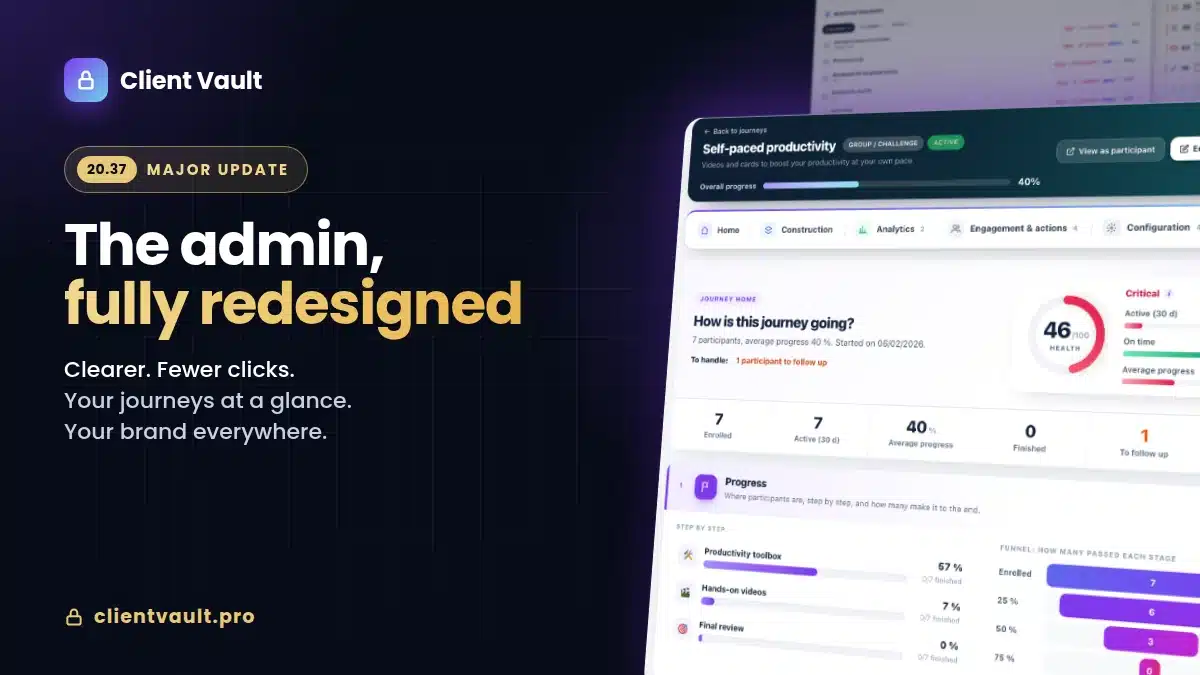
The journey is the core of the support: it’s where your client sees their progress. I have reworked it both in substance and in form.
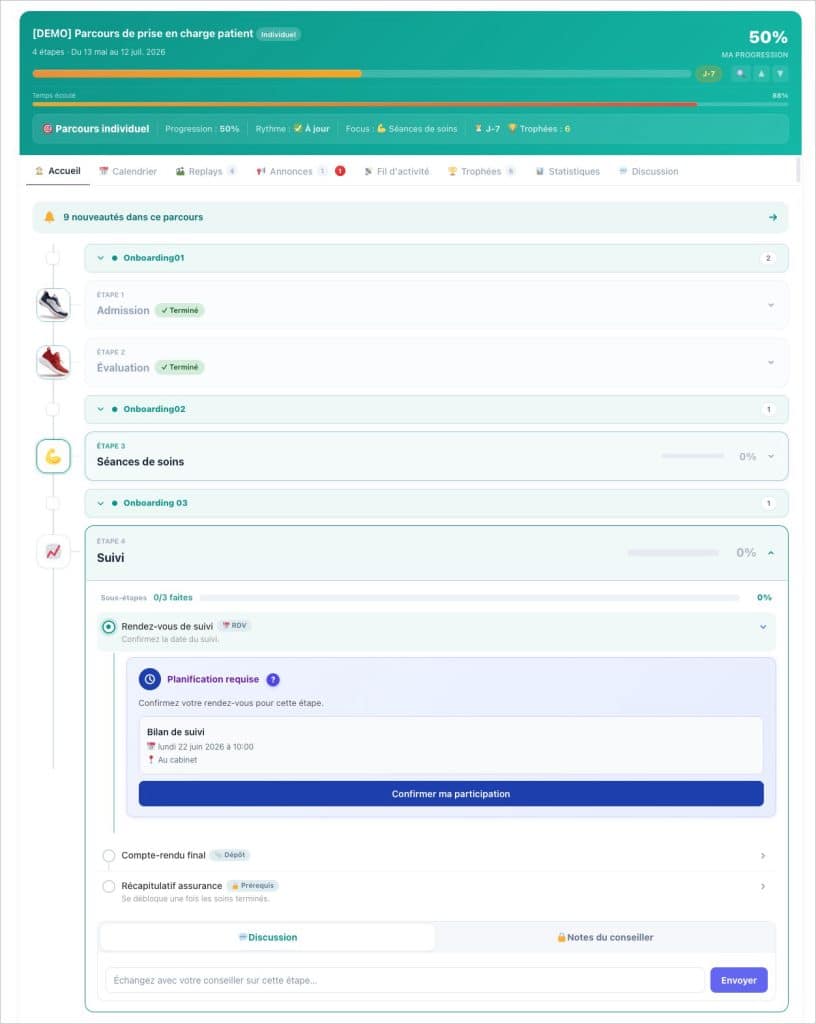
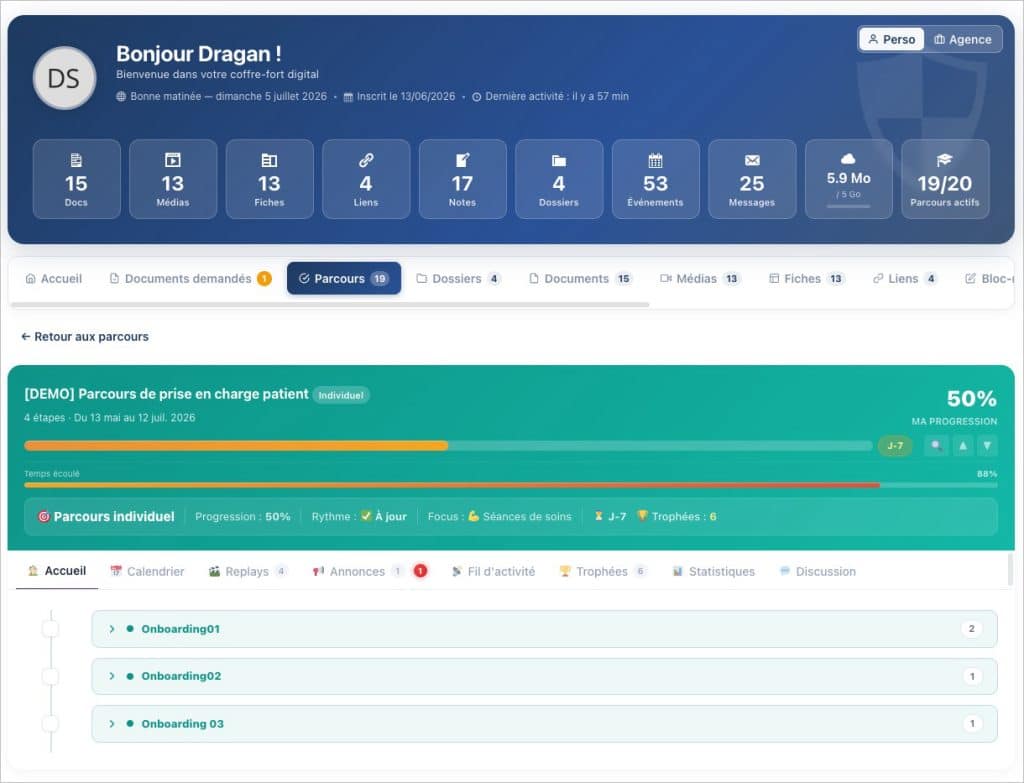
In terms of form, the step cards are now clear and modern and adopt the color of your journey, instead of a fixed blue that clashed with the rest. Each step can receive its own icon and color dot. The header blocks, formerly scattered, are replaced by a single floating button that opens a drawer bringing together new features and the clickable journey plan.
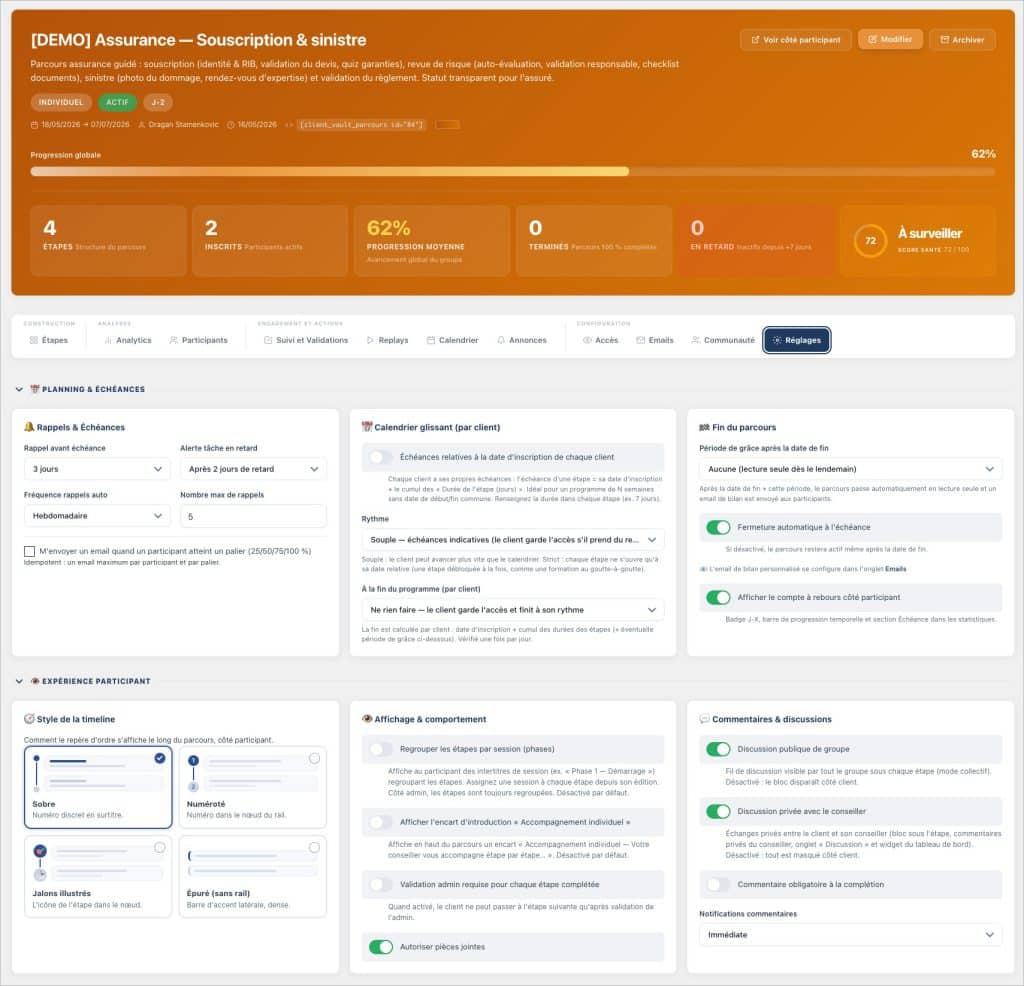
On the backend, two additions change how your clients progress. Sessions group steps into collapsible blocks to structure a long program. And the rolling calendar aligns deadlines with each client’s registration date: two people registered on different dates each follow their own pace, without manual adjustment — with an optional strict mode that locks a step until its date is reached. Finally, the reset button now erases all of a client’s progress — payments, signatures, quizzes, badges — while retaining your exchanges: no more steps stuck on “Purchase confirmed.” A dedicated article will detail this redesign.
A calendar in the vault, and no more forgotten dates
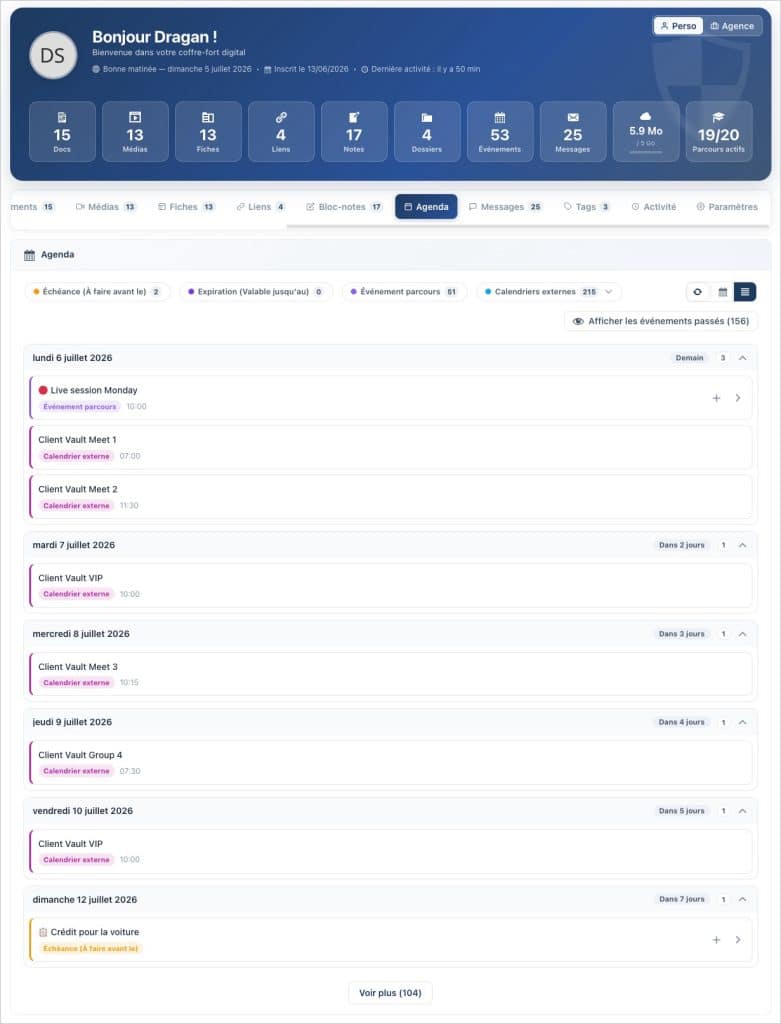
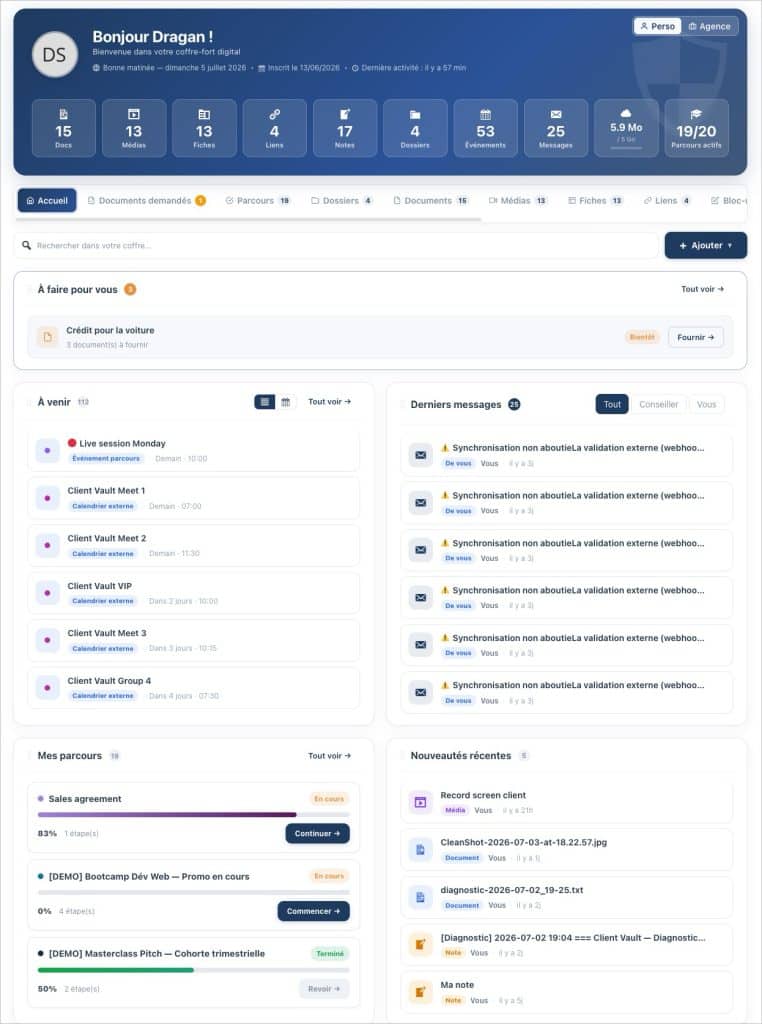
This is the most visible new feature for your clients. The vault now has a real calendar, at the same level as Documents or Media : a monthly calendar, a list view, an “Upcoming” block on the homepage, and an “Events” tile in the header.
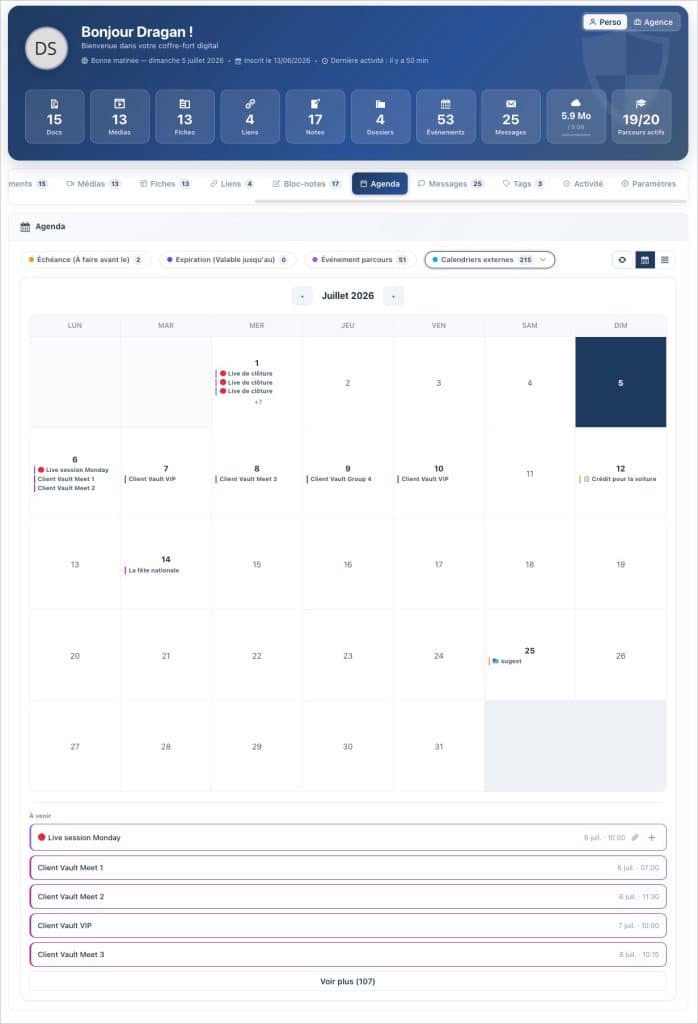
It doesn’t fill up by magic: each item in the vault can now have a due date and an expiration date. A document to renew, an item to provide by a certain date? The date automatically appears in the calendar, and an email reminder can notify the client a few days in advance. Even better: this calendar synchronizes with Google Calendar, Apple Calendar, and Outlook — true to my rule, without using a third-party service. The subscription link remains with you and can be revoked with a single click. The client-side calendar is part of the Pro offer; in the Solo plan, the tab remains visible and invites users to upgrade to Pro. These improvements will be covered in a third article.
Files, required documents, and diagnosis
Several additions streamline daily work. You can now request documents attached to a file: what the client uploads is automatically filed in the correct place, and they see a “Required Documents” section at the top of the file. File creation becomes manageable: clients can create their own autonomously, up to a set limit, or propose them for your validation, based on a global or per-client setting.
For operational purposes, a comprehensive diagnostic report — based on WordPress’s “Site Health” model — provides the installation status with a single click, and is saved as a note in your vault. Finally, I conducted a complete audit of the 17 languages: no more untranslated text in the interface, emails, and log.
Translations and Corrections
An update also means irritants disappear. This version corrects, among other things: menu hiding that was not always saved, the “Upcoming” block missing from the agency vault, the time zone of imported events, date editing on documents and media, a gallery that remained empty for PDFs and text files, a message banner that refused to disappear, and the display of vault tabs in FluentCRM. The full details are in the version log.
Our Course Remains Unchanged
One thing will not change: your data remains with you. Even the calendar that connects to Google or Outlook, even the shop that processes payments, everything lives on your hosting, and only you decide who accesses it. No publisher, including myself, can see the contents of your vaults.
Let’s be honest about one limitation: these components are new. Even if I test all functionalities in as many situations as possible, server functions — email reminders, synchronization, payment — deserve to be tested on your installation before being deployed to all your clients. I prefer to tell you this rather than promising immediate perfection.
Next Step
Do you want to see a demo of stage unlocking with payment? How does the calendar connected to your vault work, or even discover Client Vault? The best way is to see it in action on a real case. Book a video demo: I will show you the messaging system, FluentCRM integration, and the vault, under real conditions, and you can then decide with full knowledge of the facts. The editions and their contents are detailed on the offers and pricing page.
Frequently Asked Questions
How does a journey step unlock after a purchase ?
You link the step to a product in your store. The client pays, and the step automatically unlocks. If the purchase is canceled, it relocks without any intervention required from you.
Does the calendar send my data to Google or Microsoft ?
No. Synchronization occurs via a subscription link hosted on your server, which you can revoke at any time. The calendar remains in your vault ; no third-party service stores your data.
Is the Pro plan required to use the calendar ?
The client-side calendar is part of the Pro plan. With the Solo plan, the tab remains visible but prompts you to upgrade to Pro to activate it.
What is a journey’s rolling calendar ?
The deadlines for a journey are calculated from each client’s enrollment date. Two clients enrolled on different dates therefore each follow their own calendar, without manual adjustment.
Do I need to reinstall anything to benefit from this update ?
No. Update the plugin from your WordPress. Then remember to clear the caches and reload the page to see the new features.
Where can I find the full details of the changes ?
Everything is listed, version by version, in the changelog. This article only covers the main points.