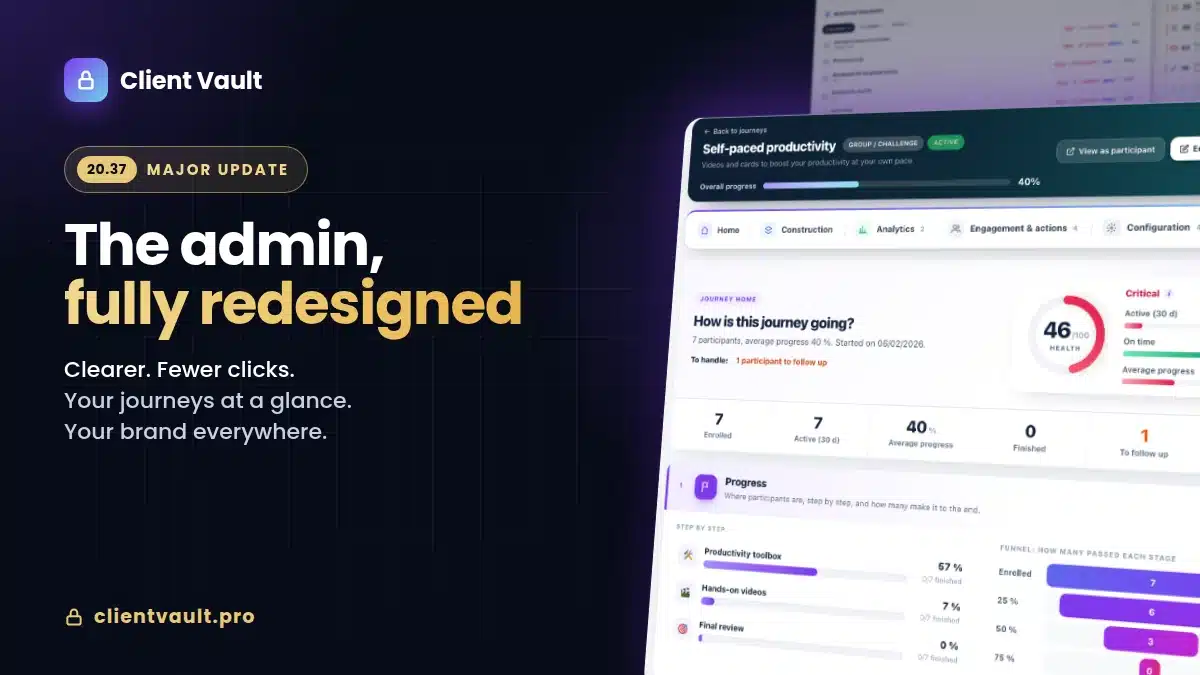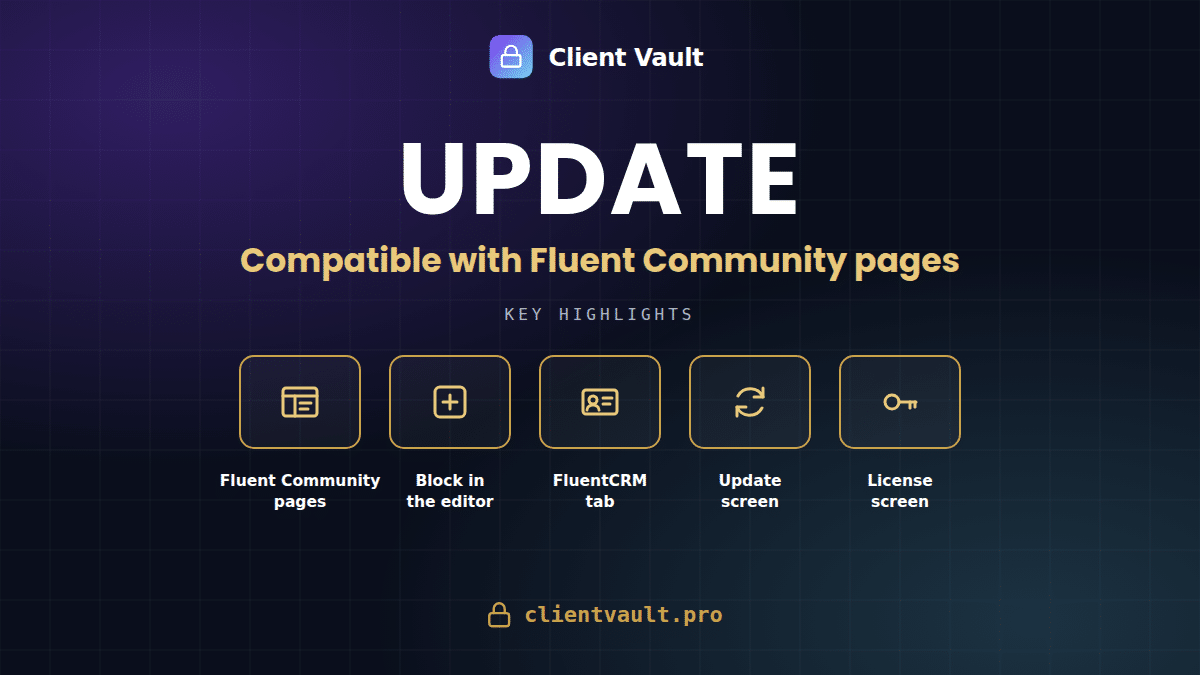
Client Vault 20.33 is compatible with the new Fluent Community Space Pages. The complete vault is displayed there, with a dedicated block in their editor. The vault in the FluentCRM contact record now fits into a single tab, and updates are handled via a new clear screen. Your data remains on your server.
Since 20.22, I have delivered a long series of versions. Some fix issues, others add entire new features. I prefer to explain what’s new rather than letting it remain unnoticed in a technical log: this reflects the same commitment to transparency I apply to the product. I won’t list everything here; I’ve grouped the essentials by theme. The version-by-version details remain in the complete changelog.
Table of Contents
What’s new, at a glance
- Fluent Community Space Pages : the complete vault is displayed within the new Pages feature, spanning the full width of each template.
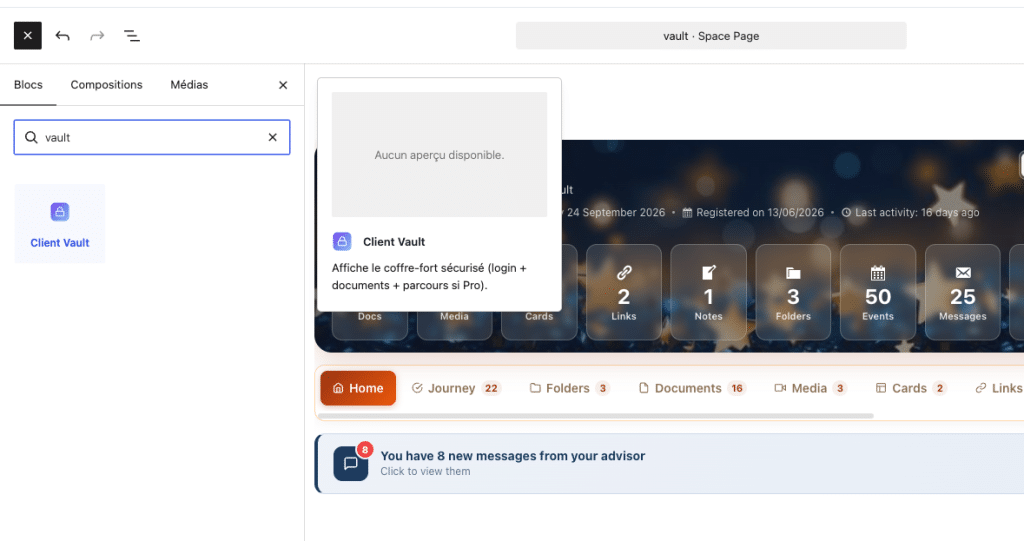
- Client Vault Block in the Fluent Community editor : it appears in the block list, with its logo and a preview of the actual vault.
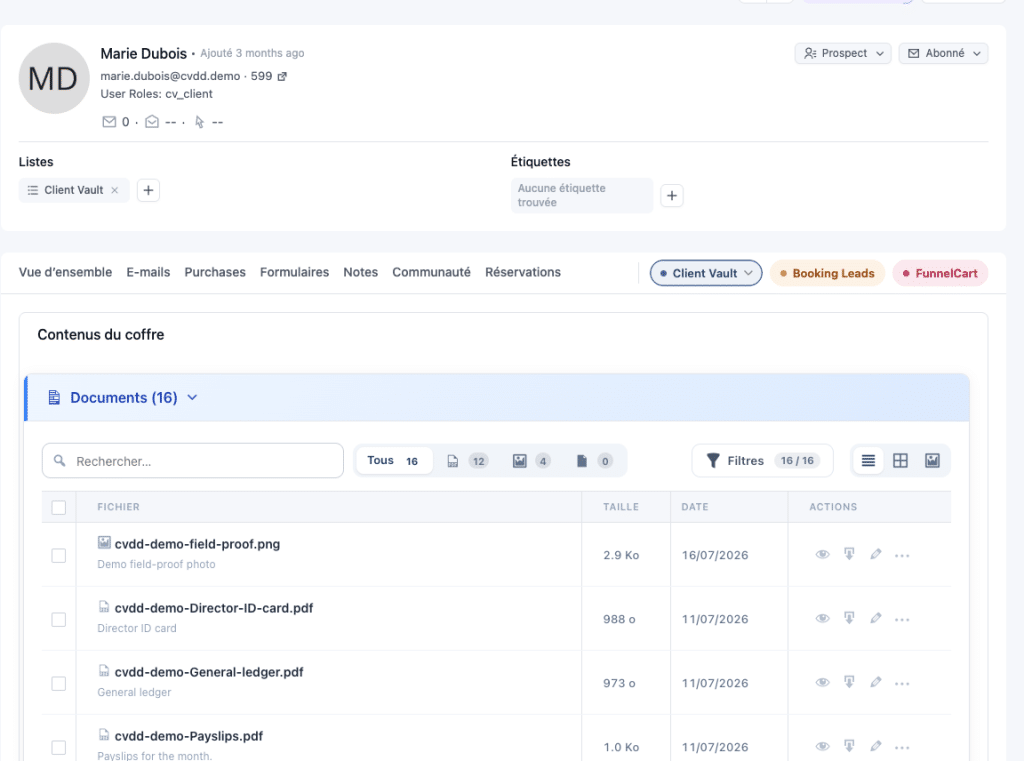
- Vault in FluentCRM : everything fits into a single ‘Client Vault’ tab, with Contents, Activity, and Message.
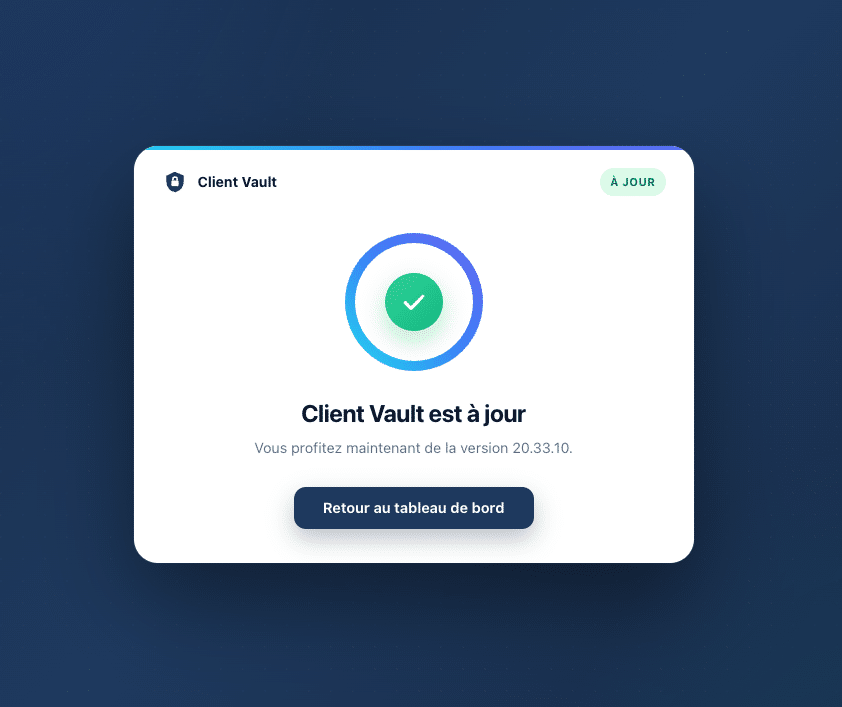
- New Update Screen: full screen, visible steps, version new features, automatic return to the dashboard.
- Automatic Updates: can be activated with one click from the Extensions page.
- New License Screen: plan, key, expiry date, and update status gathered in one place.
Compatible with new space pages
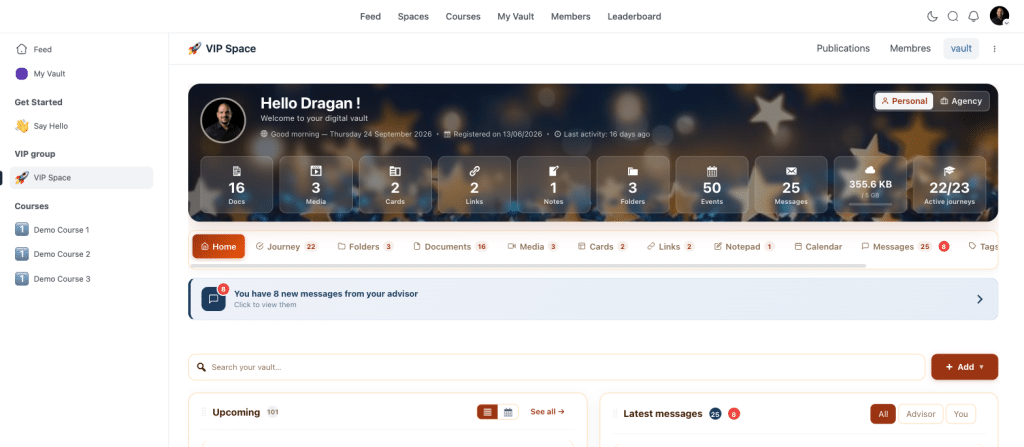
Client Vault already works with Fluent Community, as well as with extensions that allowed integrating pages into a space. Fluent Community now offers its own feature: space pages, built directly into its editor. Client Vault 20.33 is compatible with this new feature.
In a space page, the vault displays in its entirety, exactly as on a normal page: dashboard, documents, journeys, messaging, calendar. It respects the page templates offered by Fluent Community and occupies the full available width. Internal vault links remain within the space; links to the rest of the site open normally.
From a construction standpoint, the space page editor only accepts a closed list of blocks. The Client Vault block is now included. Type “vault” in the block search, and it appears with the Client Vault logo. Once placed, the editor shows a full preview of the actual vault, allowing you to assess the layout before publishing. Existing pages where the block was marked “unsupported” automatically repair themselves upon opening.
A final detail that matters in use: the vault’s scrollbar is discreet and only appears during scrolling. The vault blends into the space instead of looking like a window placed on top. All combinations with your other tools are described on the community integration page.
For WordPress agencies, two filters allow adjusting behavior without touching the plugin’s code: cv_afficher_en_cadre decides if the vault is displayed in its integrated frame, and cv_charger_assets_coffre forces the loading of vault files on a page built differently. Deployment remains reproducible from one client to another: same block, same page, same result.
The vault in FluentCRM, clarified
The client’s vault was already viewable in their FluentCRM contact record. This version evolves it: everything now fits into a single “Client Vault” tab, with three entries: Contents, Activity, and Message. You view the client’s documents, track what they’ve done in their vault, and write to them, without leaving your CRM.
This tab shares the same style as my other extensions present in the record, such as BookingLeads and FunnelCart. The record remains readable, even when multiple tools add their information to it. Everything you see there is read from your own database: nothing passes through a third-party service. To go further, see the email and CRM integration page.
Stress-free updates, a readable license
An update should never be a moment of anxiety. When you launch a Client Vault update, a full-screen display takes over: a progress bar, current steps, new features in the version, then an automatic return to the dashboard. You always know where you stand.
Under the hood, I have made the process more robust. If the primary download fails, a backup download takes over, with the same security controls. Update verification remains fast even when the license server is unresponsive, and no longer delays the detection of updates for your other extensions. Several installation blocks, which affected certain configurations, have been corrected.
You can also enable automatic updates directly from the Extensions page, just like any other WordPress extension. The Client Vault line clearly indicates the publisher, Sdravobiz, with links to the official website, documentation, FAQ, and support. The store, licenses, and support are now consolidated on sdravobiz.com.
Finally, the new License screen displays the essentials in a single view: your plan, your license, your key, its expiry date, and the update status. A lifetime license no longer displays a false expiration date, and the old, outdated price table has been removed. Current offers are on the pricing page.
Also, useful corrections
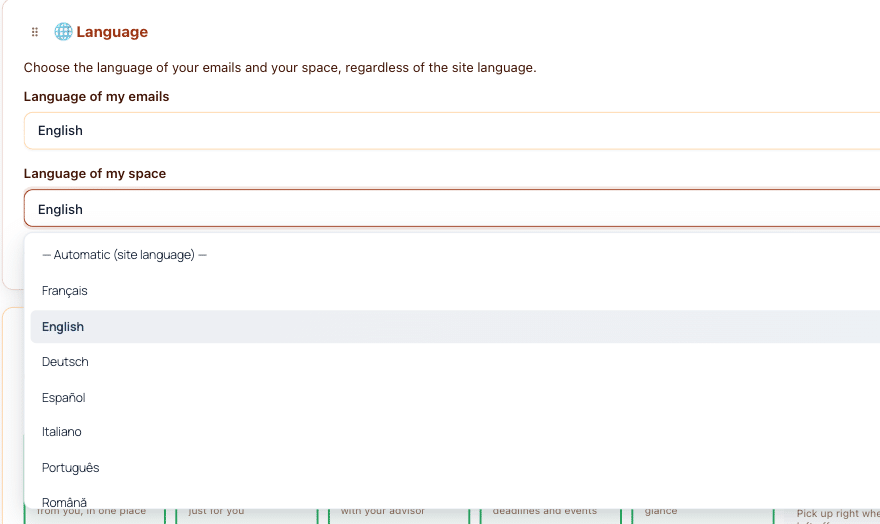
Several corrections improve daily use. The language chosen by a client applies only to their vault, and the rest of the site retains its own language. Vault files are loaded only on the pages where it is displayed, which keeps your other pages lightweight. And the vault placed using the Gutenberg block or a page builder retains all its formatting.
Our course remains unchanged
None of these new features move your data. The vault displayed in Fluent Community is the same vault, served by your WordPress, on your hosting. The FluentCRM card reads your database. Updates check your license, not your clients’ content. I do not see anything you store, and that is by design.
One limitation, to be honest : in Fluent Community, the vault appears within a frame integrated into the space page, and the preview in the editor is for judging the layout, not for using the vault. The vault is configured from the vault itself. And the Fluent Community editor evolves quickly : I validated this integration on its current version, and I will adapt it if their editor undergoes significant changes.
Next step
If you already use Client Vault, the update will appear in your WordPress dashboard. If you are still hesitant, the easiest way is to see the vault in action in a real Fluent Community space, via a video demo. The offers are detailed on the pricing page.
Frequently Asked Questions
Was Client Vault already compatible with Fluent Community ?
Yes. Client Vault already worked with Fluent Community and with extensions that integrated pages into a space. Version 20.33 adds compatibility with the Pages feature, now natively offered by Fluent Community.
How to display Client Vault on a Fluent Community space page ?
Open the space page in the Fluent Community editor, search for “vault” in the block list and insert the Client Vault block. The complete vault then appears on the page, spanning its full width.
Does Client Vault respect Fluent Community page templates ?
Yes. Client Vault adapts to the template chosen for the space page and occupies the entire available width, just like on a classic WordPress page.
Where to view a client’s vault in FluentCRM ?
In their contact record, under the “Client Vault” tab. It provides access to their content, activity, and messaging.
How to activate automatic updates for Client Vault ?
From the WordPress Plugins page, on the Client Vault row, click on “Enable auto-updates”.
Do these new features change where my data is stored ?
No. Everything remains on your WordPress server. Fluent Community, FluentCRM, and the vault read the same database on your premises. No third-party service receives your clients’ content.